












Few things disrupt a developer’s workflow faster than an unresponsive terminal window.
You download the installer package, configure your script files, open your terminal prompt to run your initial test, and hit Enter.
Instead of accessing the interactive runtime interface, a glaring low-level operating system notification stops your progress.
The issue is: "python' is not recognized as an internal or external command, operable program or batch file.”
This message can cause a lot of unnecessary anxiety. The wording makes it sound like your entire installation is corrupt or completely missing from your system files.
However, your installation files are likely perfectly intact. The underlying issue is not a software corruption crisis. Instead, it is a classic systemic blind spot in your operating system’s search mapping.
Windows uses a speacialized environmental pointer index to locate executable binaries from a standard command window.
If the active installation directory is not registered inside this index, the command prompt simply throws its hands up in confusion.
This guide shifts entirely away from generic reboot strategies.
Instead, it offers a functional look at why Windows experiences this directory blindness. Furthermore, the guide will explain how to add the correct system paths, along with the immediate workarounds you can deploy to bypass this console wall.
The Systemic Blind Spot: The Path Routing Architecture
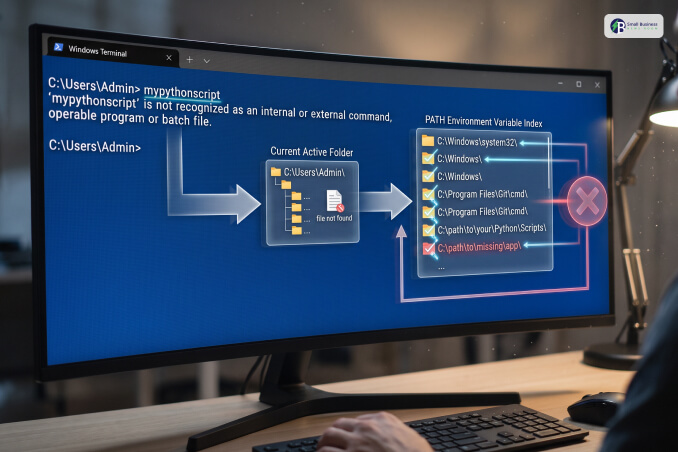
For a full understanding of why Windows prints this error, you need to look directly at how the command-line interface handles executive execution.
The Command Prompt or PowerShell environment is not inherently intelligent.
When you type any random word into the terminal console and press the execution key, the system does not crawl your entire multi-terabyte storage drive to find that file.
Instead, the console relies strictly on a pre-mapped directory shortcut index known as the PATH Environment Variable.
On the other hand, hitting the Enter key, the shell will scan your current active folder directory first.
If the exact installation folder containing your executable application file is missing from that list, the search fails completely. This forces the console to print the standard error.
The error message is not a Python failure. Instead, it is simply your terminal stating that it has no idea where the executable file lives on your machine.
The Diagnostics Matrix: Locating The Hidden Paths
Before modifying your operating system’s properties, you must find out exactly where the application installer placed your core binary assets.
By default, current Windows installers hide these files deep inside user-specific application directories to prevent accidental deletion.
Locating Your Installation Targets
| Target Component | Typical Default Installation Folder Directory Path | Core System Function |
|---|---|---|
| Main Executable Folder | C:\Users\<Username>\AppData\Local\Programs\Python\Python313 | Contains the primary python.exe binary that boots the runtime engine. |
| Scripts Sub-Folder | C:\Users\<Username>\AppData\Local\Programs\Python\Python313\Scripts | Houses the pip.exe installation engine used to download third-party libraries. |
Note: Replace <Username> with your actual Windows account profile title, and adjust Python313 to match your specific download version number.
Step-By-Step Environment Variable Manual Configuration
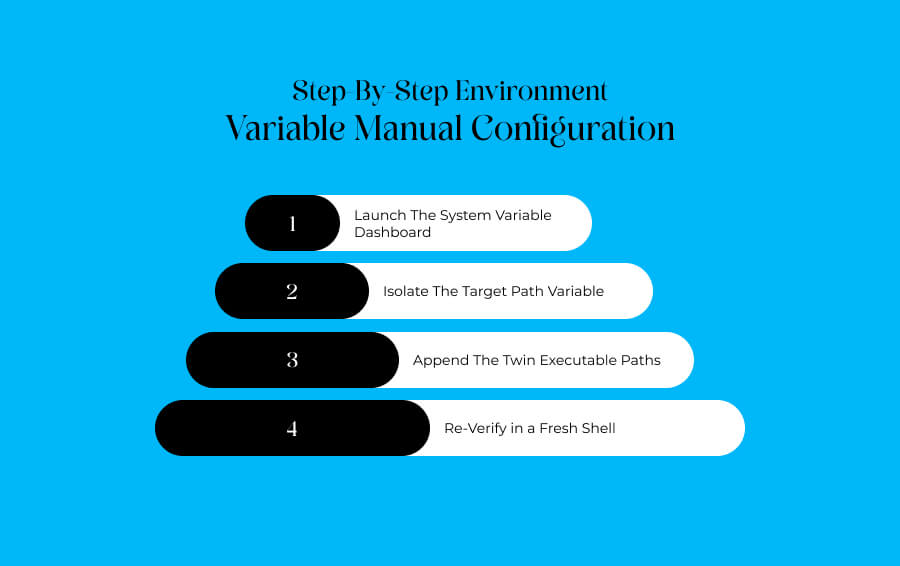
Once you have located your folder paths, you can use the built-in system properties dashboard.
This allows you to permanently register the directories inside your operating system’s search index.
Step 1: Launch The System Variable Dashboard
First, start by opening your Windows search box and typing “environmental variables.”
After this, select the option labeled Edit the system environment variables.
This opens the System Properties box, where after this you have to click the button marked Environment Variables positioned at the bottom right.
Step 2: Isolate The Target Path Variable
Look inside the top box labeled User variables or the bottom box marked System variables for all profiles.
Then, proceed to locate the specific variable line titled Path, highlight it with a single click, and click the Edit button directly underneath.
Step 3: Append The Twin Executable Paths
Click the New button on the right side of the editor layout to generate a blank line entry.
Paste your main executable folder path, hit Enter.
Following that, click New a second time, and paste your scripts sub-folder directory path.
Click OK on all three open windows to apply the changes to the operating system.
Step 4: Re-Verify in a Fresh Shell
Crucially, you must close out your active Command Prompt or terminal console window.
Open a completely fresh terminal session to force the shell to read the newly updated variable registry.
Next, type python --version. This lets your active software build display cleanly with no error codes.
Alternative Workspace Workarounds: Bypassing The Path
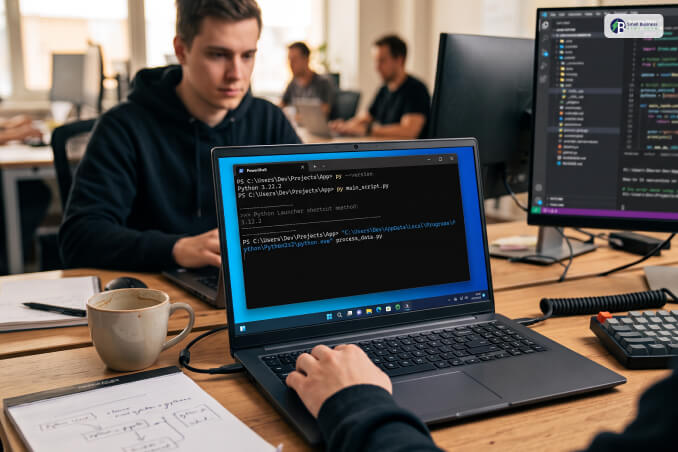
If your company's network security configuration locks down access to your system's environment properties, you can deploy secondary terminal techniques to bypass the routing issue entirely.
Using The Python Launcher Shortcut
Windows installations include a built-in launcher shortcut designed specifically to handle pathing conflicts.
Instead of typing the full word into your command line, type the short code py followed by your commands or file paths. For example, py --version or py script.py.
The launcher bypasses the traditional path list and scans your internal software registry to launch the highest version available on your computer.
Executing Via Direct Absolute Paths
If both execution paths fail, you can bypass system searches entirely by addressing the file using its literal location.
Rather than counting on the shell to locate the binary, paste the absolute directory path wrapped inside quotation marks directly into the console prompt.
Do this alongside your target file name:
"C:\Users\<Username>\AppData\Local\Programs\Python\Python313\python.exe" script.py
Keeping Your Environment Organized
Resolving a terminal path error proves that mastering command-line tools is less about fighting broken code. Instead, it is more about understanding how your operating system handles internal search paths.
The development workspace functions perfectly only when its foundational directories are cleanly mapped.
Ultimately, you have to start by running an audit of your active installation folders and manually appending the twin executable directories to your system's properties. Moreover, utilize the built-in launcher shortcut as a rapid workaround.
In this way, you can successfully fix the broken routing lines.