











No Shortcuts, No Problem: How Do You Open a Program When There Are No Icons on the Desktop?

by

28 September 2026

Technology

how do you open a program when there are no icons on the desktop

Staring at a completely bare screen is a massive headache when you just want to get things done. 

It usually happens out of nowhere. 

Maybe a forced update swallowed your shortcuts overnight, a weird glitch turned them off, or you hid them yourself to get a clean look and now regret it.

Either way, your software isn't deleted. It is just sitting on your hard drive waiting for a command. 

Windows has plenty of built-in ways to move around without clicking a single visual shortcut. 

If you are stuck wondering how do you open a program when there are no icons on the desktop, let's look at a few quick workarounds to launch your apps right now.

Method 1: The Windows Search Bar And Start Menu
Method 1_ The Windows Search Bar And Start Menu

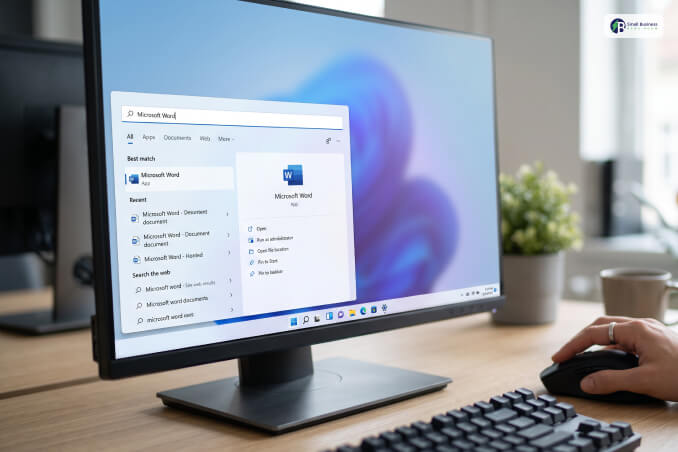
The most direct answer to how do you open a program when there are no icons on the desktop lies within your taskbar.

The Windows Search function and the Start Menu act as the central nervous system for file and application retrieval. 

Using The Taskbar Search Box 

Look at the bottom of your screen. If you see a magnifying glass or a text field that says “Type here to search,” simply click inside it.

Then, type the exact name of the application you intend to use. For example, typing “Microsoft Word” will immediately bring up the official app link at the very top of the results panel.

Pressing Enter will open it instantly.

The Keyboard Shortcut Alternative

If your mouse cursor is unresponsive or you prefer hands-on keyboard navigation, press the Windows logo key on your keyboard. This mechanical trigger opens the Start Menu immediately. 

Without clicking anything else, start typing the name of your desired application. 

Windows will automatically redirect your input into the search algorithm, displaying the correct software option within milliseconds.

Method 2: The Run Command Box

For users who appreciate rapid system navigation without clicking through menus, the Run command dialogue box is an incredibly powerful alternative. 

Moreover, it bypasses the visual desktop interface entirely and pulls applications straight from the system directories.

Initiating The Run Box

To call up this utility, hold down the Windows Key and press R simultaneously. 

A small, compact window will manifest in the bottom-left corner of your display screen.

Entering Executable Commands

Inside the text field, you must type the specific executable filename (the ".exe" file) of the software rather than its display name. 

While some commands match the program name, others require specific shorthand terms.

Desired ApplicationExecutable Command to Type
Google Chromechrome
Notepadnotepad
Calculatorcalc
Microsoft Wordwinword
Microsoft Excelexcel
Task Managertaskmgr

Once you input the command, hit Enter or click the OK button to execute the launch sequence.

Method 3: Windows File Explorer Navigation
Method 3_ Windows File Explorer Navigation

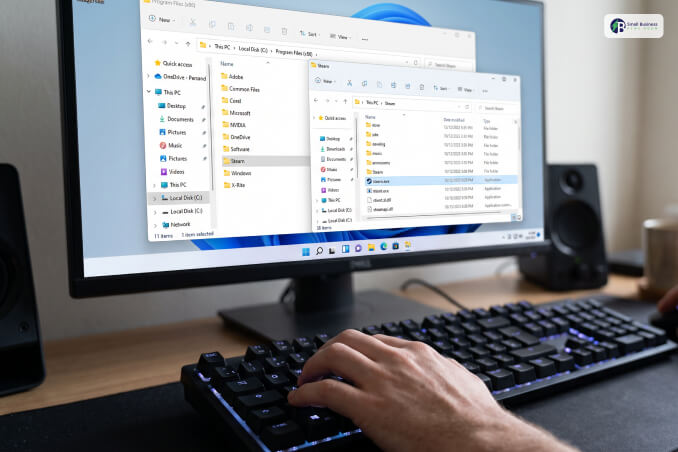
When shortcuts are missing, the actual installation directories remain completely intact.

You can manually browse your local storage drives via File Explorer to locate the core files of your software.

Accessing File Explorer

Press the Windows Key + E on your keyboard to instantly pull up File Explorer. If your taskbar is visible, you can also click the yellow folder icon.

Tracking the Installation Path

Most software installations default to specific system directories on your primary hard drive. 

Double-click on "This PC" and open your Local Disk (C:). From there, you will navigate through specific folders depending on the architecture of the application.

  • Program Files: This folder houses standard 64-bit applications like Adobe Creative Cloud or modern web browsers.
  • Program Files (x86): This folder contains older or 32-bit legacy applications.

Launching the Application File

Scroll through the alphabetical list of folders to find the publisher or program name. 

Open the directory, locate the file that features the program’s official logo icon, and verify that its type is listed as an "Application." 

Finally, double-click this file to initiate the software.

Method 4: Task Manager Command Execution
Method 4_ Task Manager Command Execution

If your entire desktop environment is frozen, Task Manager can act as an emergency control center. This means your taskbar and Start Menu have disappeared along with your icons.

Forcing Task Manager Open

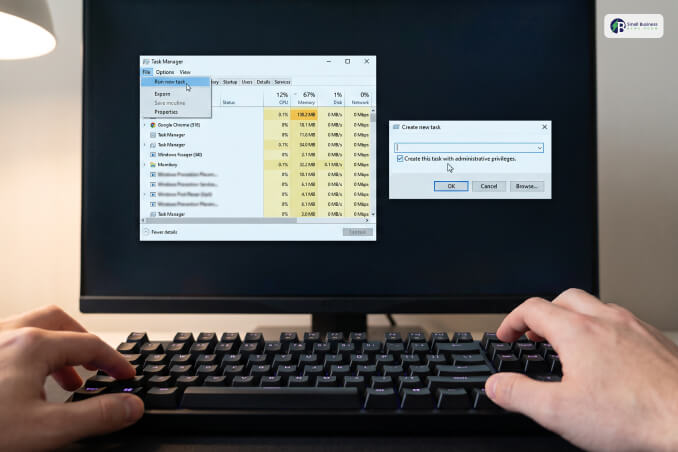
Press the classic three-key combination: Ctrl + Shift + Esc. 

Accordingly, this bypasses typical user interface layers and forces the system diagnostics window to open over any background freezes.

Creating A New Task

Look at the top menu bar of the Task Manager window. Click on "File" and select "Run new task" from the dropdown options. 

A small dialogue box, practically identical to the Run command box, will appear on your screen.

Executing The Command

Just type the shortcut command straight into the box. 

If you don't know the exact command name, hit the "Browse" button instead and dig through your computer's drive to find the main application folder manually. 

However, if the program needs full permissions to run properly, make sure to check the box for administrative privileges before clicking OK.

Quick Reference Summary Of Navigation Methods

To help you decide which pathway is best for your current situation, consider this structured overview of your options.

Navigation MethodPrimary TriggerBest Used For
Windows Search BarWindows KeyEveryday software access and quick file tracking
Run Dialogue BoxWindows Key + RQuick, mouse-free launching using short system commands
File ExplorerWindows Key + ELocating deep installation files and broken software paths
Task ManagerCtrl + Shift + EscEmergency launching when the desktop interface is frozen

Quick Steps To Restore Your Missing Desktop Layout
Quick Steps To Restore Your Missing Desktop Layout

Working with a bare monitor is a fine temporary workaround, but most people prefer having their standard shortcuts within arm's reach. 

Let's look at how to get your screen layout back to normal in just a few clicks.

Unhiding Your Desktop Shortcuts

Most of the time, shortcuts go missing because of an accidental click in your display options. 

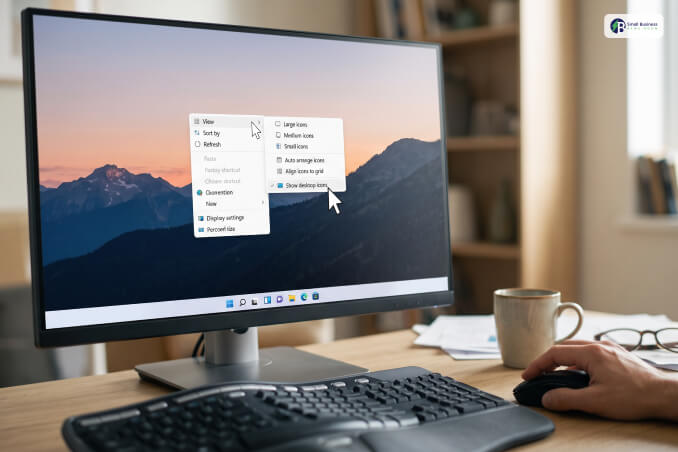
To see if that is the case, right-click anywhere on the empty wallpaper. Hover your mouse over the "View" menu at the top of the list. 

When the side menu pops open, look down at the very bottom line for "Show desktop icons." If there is no checkmark next to it, go ahead and click it. 

Your entire icon grid should pop back up instantly.

Putting Core System Folders Back

If your regular files are showing but icons like "This PC" or your "Recycle Bin" are nowhere to be found, you need to tweak your system personalization settings. 

Tap the Windows Key + I on your keyboard to pull up the main settings window. 

Click on "Personalisation" along the left sidebar, then click on "Themes" in the main panel. Scroll down a bit until you find the link for "Desktop icon settings." 

Click it, check the empty boxes for whichever native tools you want on your screen, and hit Apply then OK.

Getting Comfortable With Alternative Navigation

A blank screen feels jarring at first.

However, it shows how fast you can move around Windows once you stop relying on a crowded desktop layout. 

Getting used to the Search bar, system hotkeys, or direct file directories gives you a great backup plan when your computer acts up. 

Whether you plan to keep your monitor clean on purpose or just want a quick fix to finish your work, you can now manage your applications under any circumstances.

Barsha is a seasoned digital marketing writer with a focus on SEO, content marketing, and conversion-driven copy. With 8+ years of experience in crafting high-performing content for startups, agencies, and established brands, Barsha brings strategic insight and storytelling together to drive online growth. When not writing, Barsha spends time obsessing over conspiracy theories, the latest Google algorithm changes, and content trends.

View all posts

Leave a Reply

Your email address will not be published. Required fields are marked *

Related

Paper Shredding

Paper Shredding is Nothing Like in Hollywood Movies

How many times in Hollywood movies have you seen somebody frantically feeding papers into a shredder before the authorities arrive on the scene? It may be a common trope, but this doesn’t resemble how people use professional shredders today. Everybody has sensitive documents which could cause a devastating data breach if they got into the wrong hands. Having such information is an inevitable part of being a citizen — it doesn’t mean you have something to hide. Please keep reading to learn more about how professional shredding works in the real world. Home Shredding: Every day people are targeted by scammers who try to piece together whatever personal information about strangers they can get their hands on. People hire a paper shredding company every day to ensure that their home is free of data liabilities that could come back to bite them later. Here are a few of the items professional shredders commonly need to destroy: Tax documents Banking information Contracts Pages with passwords and usernames Especially with more people than ever working remotely, having sensitive information at home is more common than ever. If you have these or other such documents at home, the safest thing to do is get them professionally shredded. Commercial Shredding: It’s impossible to do business for any length of time without generating paperwork. From the smallest business to the largest corporation, there’ll be an endless procession of things like receipts, HR documents, contracts and agreements, and other paper documents which corporate saboteurs or identity thieves would love to possess. Just as with home shredding, professional shredders can destroy your sensitive documents on-site or remotely. For example, if you are located in California, you can look for shredding services in San Francisco to dispose of your documents securely. Even if they aren’t connected to the internet, electronics are a common source of data leaks, and these devices need to be eliminated with the same thoroughness as paper documents. Professional shredders will destroy the microchips on the device, so it’s impossible for a data thief to retrieve information. Do you have old phones, computers, or other electronics that you used for work? Obsolete technology might not be useful in your day-to-day life, but a corporate saboteur would love to find it! Call a professional shredder to get rid of electronics that are no longer useful safely. While some such devices like computers and phones are an obvious vector for identity theft, other devices that you may not think of also contain very sensitive information. If your office or home office contains an old photocopier or printer memory card, calling a professional shredder to eliminate it is the safest course of action you can take. People in all walks of life need to be careful that their personal and professional information doesn’t fall into the wrong hands. While the most prominent victims of identity theft get the bulk of the news coverage, it’s an issue that can affect anyone. Call professionals to help you steer clear of all risks associated with data theft. Read Also: High Technology Devices for Better Life Get The Best Assistive Technology: A Telecare Equipment

READ MOREDetails
Filmora

Features That Make Filmora The Best Editing Software In 2026

Video is not just a skill to learn but is also become in demand for different professions. If you are a YouTuber then you must have to learn video editing to create and edit videos for your viewers. It needs lots of effort and dedication to create a unique video with the best features. Filmora helps you to become a professional video editor and can edit videos for personal as well as professional use. You can also do editing work for others and can charge them money for editing services. You can make advertisement videos for business products and can also edit videos for YouTubers and Social Media influencers. It is all become easy for your once you start using Filmora. Filmora has many professional and expert users who are regularly using Filmora. You have to check all these on Filmora and for this, you have to visit the website. Latest features in Filmora 11: Filmora 11 comes with the latest features that allow its users to make videos attractive and watchable for viewers. So, you have to check all features and for the access, you have to purchase a plan. You can use Speed Ramping for speed control. Masking for safety and security. Auto Beat Sync for better music. and Instant Mode to get any mode for a better experience. You will also get 3rd-Party Stock Media (professional movie effects from OpenFX and NewBlue FX) and also Wondershare Drive for storage. With all these, you will also get audio editor features which are also essential to make your video impressive. Audio plays a very important role because it explains the content of the video and what the creator wants to explain to the viewers. Get Brief Descriptions Of The Latest Features: Auto Beat Sync Mask Instant Mode 1. Auto Beat Sync: It analyzes the music automatically and creates highlight videos for you. It allows you to choose the videos which are better without checking them all. 2. Mask: It helps you to cover all the effects and make a unique and clear video. There is no sign of effects and tools which you will use. Nobody will know how you make such impressive and unique videos. 3. Instant Mode: It helps you to provide a complete template video. You can quickly find a nice video from your media. Reviews And Ratings: People love using Filmora because of its features and qualities. You can learn video editing without any hassle or any classes. You can learn editing by just watching videos and with regular practice. Many teachers, students, YouTubers, Social media influencers, and many more are using Filmora regularly and are happy with the results they get. You can become a professional editor by just using Filmora. You don’t need any previous experience to use Filmora and edit videos in Filmora. Many beginners are happily using Filmora and they like it that they become professional. Why do you have to try Filmora? You need to know the pros and cons which are given in Filmora and check them all for better understanding: Pros: Filmora comes with the best offers that allow you to get the best deals on plans and prices. You will get all these features at very awesome pricing. Filmora offers you discounts on a flat fee which make it affordable for you and provide you best results. Filmora is accessible from anywhere and anytime. You don’t have to worry about your location and privacy. Cons: Filmora doesn’t have complete access for users of features and tools. You can use limited sources as compares to other video editing software. Is Filmora better than others? You can compare the features of Filmora with other editing software and you have to decide which one is best in 2026? You have to check all the features and benefits which are available in Filmora to make comparison easy. Filmora has the best editing features which makes your video much more interesting and unique. You don’t need any previous knowledge to use Filmora for video editing. Many people are there who are regularly using FIlmora without any worry. You can also compare the prices and plan with others to get better knowledge about which video editing software is best. Price, Plan, and Download: Filmora is available at different prices and plans. You can choose which one is suitable for you and which one you have to choose to get your access. You can choose a plan for personal and professional use. So, it all makes Filmora the best video editing software. You can choose the plan that starts from US$28.98. Filmora is also available with a limited period offer which is the best deal for you to choose. You can make the decision today to start learning. Download from here: Windows Mac iPad Conclusion: Filmora is available with numerous benefits and you don’t have to waste your time and money on classes. You have to check all the details on Filmora and get your access. You need to get the details and have to start using Filmora from today. Filmora helped many people in getting their desired editing in the video. You can edit any video very easily and make it more impressive for viewers. You will get numerous options that allow you to get the best results for your video editing experience. Filmora is always there to help you in learning video editing easily. You must have to try it for once. Read Also: Why You Should Always Use Special Effects for Video Productions Try These Mac Screen Recording Software For Your Next Webinar Movavi Video Suite Review: A Comprehensive Tool to Create Videos

READ MOREDetails
Python For Robotics

Python For Robotics: Programming And Controlling Intelligent Robots

In the dynamic world of technology, the synergy between programming and robotics has paved the way for incredible innovations. Python, a versatile and user-friendly programming language, has emerged as a powerful tool for programming and controlling intelligent robots. This article delves into the fascinating realm of robotics powered by Python, exploring how this language is transforming the field and enabling the creation of advanced robotic systems. The Role Of Python In Robotics Python's popularity in robotics is attributed to its readability, simplicity, and rich ecosystem of libraries that streamline development. As robots become more sophisticated and capable of handling complex tasks, the need for a programming language that can handle diverse functionalities becomes paramount. Python fits this requirement perfectly by offering libraries that cover everything from machine learning and computer vision to control systems and sensor integration. Creating Robot Behaviors With Python One of the fundamental aspects of robotics is programming robots to exhibit desired behaviors. Python's concise syntax and extensive libraries make this process intuitive and efficient. Through libraries like pyRobotics and ROS (Robot Operating System), developers can write code to control robot movements, manipulate objects, perceive the environment, and interact with humans. Python's adaptability is particularly evident in simulation environments like Gazebo and V-REP, where developers can model, test, and visualize their robot behaviors before deploying them to real hardware. This iterative process helps in refining algorithms and reducing errors during the physical implementation. Computer Vision And Perception Python's prowess in computer vision has revolutionized robotics' ability to perceive and understand the world around them. Libraries like OpenCV and scikit-image enable robots to process images and videos, enabling tasks like object detection, tracking, and even facial recognition. With these capabilities, robots can interact with their surroundings, identify objects, and make decisions based on visual data. For instance, Python's computer vision capabilities are instrumental in applications like autonomous vehicles, where robots need to detect and interpret traffic signs, pedestrians, and other vehicles to navigate safely. As the field of robotics continues to expand, finding skilled Python developers who can harness these capabilities to develop innovative robotic systems is crucial. If you're seeking to build a team of adept Python developers for your robotics projects, you can explore potential candidates at Hire Python Developers. Machine Learning And Robotics Machine learning is a driving force behind many robotic advancements, from teaching robots to learn from their experiences to enabling them to adapt to dynamic environments. Python's libraries, including TensorFlow, PyTorch, and sci-kit-learn, empower developers to implement complex machine learning algorithms for tasks like motion planning, object manipulation, and even natural language processing in human-robot interaction. Reinforcement learning, a subset of machine learning, is particularly valuable for robotics. Through reward-based learning, robots can learn optimal behaviors through trial and error, making them adaptable to unpredictable scenarios. Python's support for reinforcement learning libraries like Stable Baselines and RLlib facilitates the development of intelligent, learning-based robotic systems. Sensor Integration And Control Systems Efficient robotic systems heavily rely on accurate sensor data and precise control mechanisms. Python's compatibility with hardware interfaces and sensor libraries makes it a suitable choice for integrating sensors such as LiDAR, cameras, ultrasonic sensors, and more. Python's simplicity extends to control systems as well. Whether it's creating PID (Proportional-Integral-Derivative) controllers or implementing complex feedback control algorithms, Python's mathematical libraries and its real-time capabilities allow developers to fine-tune and optimize robot movements and responses. Robotics Simulation And Rapid Prototyping Python's role in robotics isn't limited to physical implementation. Simulation environments like Gazebo and V-REP enable developers to create virtual replicas of robots, test algorithms, and refine behaviors in a risk-free environment. This approach drastically reduces development time and costs by identifying potential issues before they occur in real-world scenarios. Moreover, Python's scripting capabilities enable researchers and developers to automate simulation scenarios, making it easier to conduct large-scale experiments and gather data for analysis. Challenges And Future Prospects While Python offers numerous advantages for robotics, it's not without challenges. Real-time constraints, which are critical in robotics, can sometimes limit Python's performance. However, advancements in libraries like Cython and the use of Python in conjunction with languages like C++ help mitigate these challenges. As technology evolves, the future of Python in robotics looks promising. With ongoing developments in libraries, frameworks, and hardware interfaces, Python's role in creating smarter, more capable robots is set to expand further. Can I Enable A Robot Along With Python?  Up till now, we took you through the basic concepts. But it is time to see how Python is actually helpful for actualizing a robot. Our instances will consist of the following: Python Frameworks Use Case A Vision-based robot for mobile navigation It is easier to use the prebuilt Python and its Robot Programming runtime environment, particularly for Linux or Windows. The Python scripts above are responsible for controlling the robot. The latter can be assembled in various ways.  Robot Assembly It is important to arrange the wheels arranged exactly like a usual vehicle. However, it is equally important to fit ultrasonic sensors at both the front and rear of the chassis. Hence, the camera is mounted at a slightly elevated position right at the chassis front. Do not forget to connect it directly to the Nano. As for motors, there must be a proper interface along with a motor driver.  Robot Programming  Start working on the Raspberry Pi after the installation of the Programming environment. Your primary Python script must import the sonar modules, motor, and camera. We have to utilize a model that already comes with training in the OpenCV-Python association. It helps in detecting multiple images at a single time. Conclusion The marriage of Python and robotics has redefined the boundaries of what robots can achieve. From enhancing perception with computer vision to enabling learning through machine learning algorithms, Python has become a linchpin in the creation of intelligent robotic systems. It has a user-friendly syntax, expansive libraries, and compatibility with various hardware interfaces. This places Python as an ideal choice for both novice roboticists and seasoned experts. Read Also: How to Become a Hacker: X Steps to Follow 7 Advantages of Using Website Design Templates About FuseLab Creative

READ MOREDetails