












Staring at a completely bare screen is a massive headache when you just want to get things done.
It usually happens out of nowhere.
Maybe a forced update swallowed your shortcuts overnight, a weird glitch turned them off, or you hid them yourself to get a clean look and now regret it.
Either way, your software isn't deleted. It is just sitting on your hard drive waiting for a command.
Windows has plenty of built-in ways to move around without clicking a single visual shortcut.
If you are stuck wondering how do you open a program when there are no icons on the desktop, let's look at a few quick workarounds to launch your apps right now.
Method 1: The Windows Search Bar And Start Menu
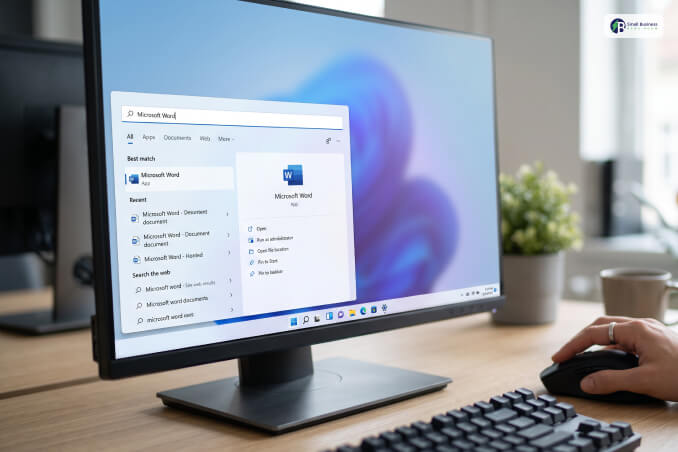
The most direct answer to how do you open a program when there are no icons on the desktop lies within your taskbar.
The Windows Search function and the Start Menu act as the central nervous system for file and application retrieval.
Using The Taskbar Search Box
Look at the bottom of your screen. If you see a magnifying glass or a text field that says “Type here to search,” simply click inside it.
Then, type the exact name of the application you intend to use. For example, typing “Microsoft Word” will immediately bring up the official app link at the very top of the results panel.
Pressing Enter will open it instantly.
The Keyboard Shortcut Alternative
If your mouse cursor is unresponsive or you prefer hands-on keyboard navigation, press the Windows logo key on your keyboard. This mechanical trigger opens the Start Menu immediately.
Without clicking anything else, start typing the name of your desired application.
Windows will automatically redirect your input into the search algorithm, displaying the correct software option within milliseconds.
Method 2: The Run Command Box
For users who appreciate rapid system navigation without clicking through menus, the Run command dialogue box is an incredibly powerful alternative.
Moreover, it bypasses the visual desktop interface entirely and pulls applications straight from the system directories.
Initiating The Run Box
To call up this utility, hold down the Windows Key and press R simultaneously.
A small, compact window will manifest in the bottom-left corner of your display screen.
Entering Executable Commands
Inside the text field, you must type the specific executable filename (the ".exe" file) of the software rather than its display name.
While some commands match the program name, others require specific shorthand terms.
| Desired Application | Executable Command to Type |
|---|---|
| Google Chrome | chrome |
| Notepad | notepad |
| Calculator | calc |
| Microsoft Word | winword |
| Microsoft Excel | excel |
| Task Manager | taskmgr |
Once you input the command, hit Enter or click the OK button to execute the launch sequence.
Method 3: Windows File Explorer Navigation
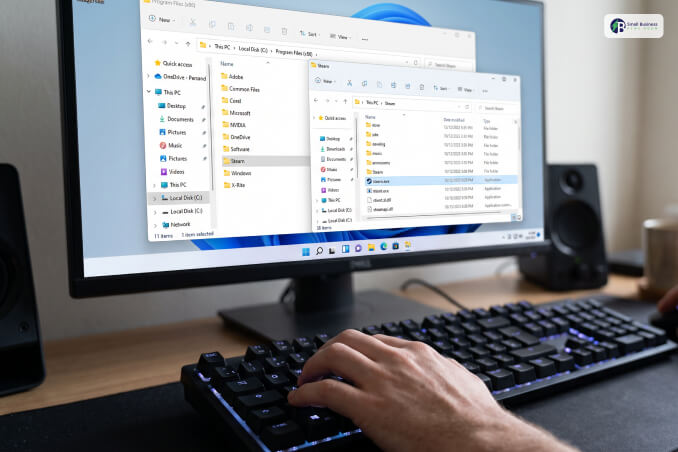
When shortcuts are missing, the actual installation directories remain completely intact.
You can manually browse your local storage drives via File Explorer to locate the core files of your software.
Accessing File Explorer
Press the Windows Key + E on your keyboard to instantly pull up File Explorer. If your taskbar is visible, you can also click the yellow folder icon.
Tracking the Installation Path
Most software installations default to specific system directories on your primary hard drive.
Double-click on "This PC" and open your Local Disk (C:). From there, you will navigate through specific folders depending on the architecture of the application.
- Program Files: This folder houses standard 64-bit applications like Adobe Creative Cloud or modern web browsers.
- Program Files (x86): This folder contains older or 32-bit legacy applications.
Launching the Application File
Scroll through the alphabetical list of folders to find the publisher or program name.
Open the directory, locate the file that features the program’s official logo icon, and verify that its type is listed as an "Application."
Finally, double-click this file to initiate the software.
Method 4: Task Manager Command Execution
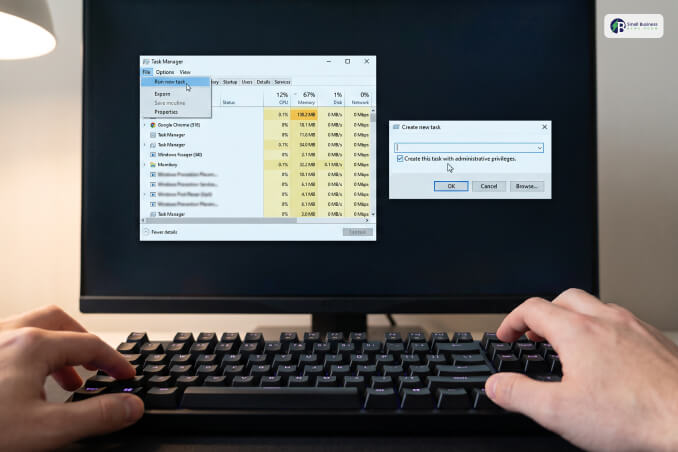
If your entire desktop environment is frozen, Task Manager can act as an emergency control center. This means your taskbar and Start Menu have disappeared along with your icons.
Forcing Task Manager Open
Press the classic three-key combination: Ctrl + Shift + Esc.
Accordingly, this bypasses typical user interface layers and forces the system diagnostics window to open over any background freezes.
Creating A New Task
Look at the top menu bar of the Task Manager window. Click on "File" and select "Run new task" from the dropdown options.
A small dialogue box, practically identical to the Run command box, will appear on your screen.
Executing The Command
Just type the shortcut command straight into the box.
If you don't know the exact command name, hit the "Browse" button instead and dig through your computer's drive to find the main application folder manually.
However, if the program needs full permissions to run properly, make sure to check the box for administrative privileges before clicking OK.
Quick Reference Summary Of Navigation Methods
To help you decide which pathway is best for your current situation, consider this structured overview of your options.
| Navigation Method | Primary Trigger | Best Used For |
|---|---|---|
| Windows Search Bar | Windows Key | Everyday software access and quick file tracking |
| Run Dialogue Box | Windows Key + R | Quick, mouse-free launching using short system commands |
| File Explorer | Windows Key + E | Locating deep installation files and broken software paths |
| Task Manager | Ctrl + Shift + Esc | Emergency launching when the desktop interface is frozen |
Quick Steps To Restore Your Missing Desktop Layout
Working with a bare monitor is a fine temporary workaround, but most people prefer having their standard shortcuts within arm's reach.
Let's look at how to get your screen layout back to normal in just a few clicks.
Unhiding Your Desktop Shortcuts
Most of the time, shortcuts go missing because of an accidental click in your display options.
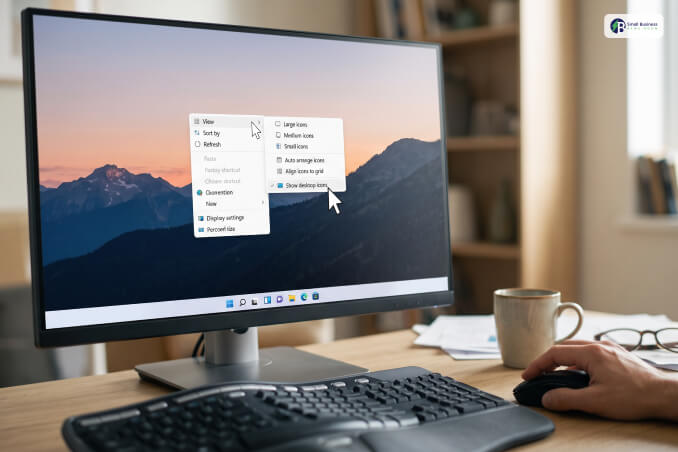
To see if that is the case, right-click anywhere on the empty wallpaper. Hover your mouse over the "View" menu at the top of the list.
When the side menu pops open, look down at the very bottom line for "Show desktop icons." If there is no checkmark next to it, go ahead and click it.
Your entire icon grid should pop back up instantly.
Putting Core System Folders Back
If your regular files are showing but icons like "This PC" or your "Recycle Bin" are nowhere to be found, you need to tweak your system personalization settings.
Tap the Windows Key + I on your keyboard to pull up the main settings window.
Click on "Personalisation" along the left sidebar, then click on "Themes" in the main panel. Scroll down a bit until you find the link for "Desktop icon settings."
Click it, check the empty boxes for whichever native tools you want on your screen, and hit Apply then OK.
Getting Comfortable With Alternative Navigation
A blank screen feels jarring at first.
However, it shows how fast you can move around Windows once you stop relying on a crowded desktop layout.
Getting used to the Search bar, system hotkeys, or direct file directories gives you a great backup plan when your computer acts up.
Whether you plan to keep your monitor clean on purpose or just want a quick fix to finish your work, you can now manage your applications under any circumstances.