













Navigating data transfers across modern enterprise environments requires smooth interaction between different operating systems.
However, users frequently hit a major roadblock when trying to connect an Apple-formatted external hard drive or flash storage drive directly to a Microsoft Windows computer.
Because Windows lacks native system drivers to recognize Apple's proprietary file structures, plugging in a Mac disk usually results in an unreadable drive error or a destructive prompt to format the device.
To bridge this operational gap, systems administrators and creative professionals rely on specialized software tools.
The portal gettransmac.com is a vital resource for downloading and learning about TransMac, a highly efficient utility developed by Acute Systems.
This software enables Windows environments to read, write, format, and flash Mac-configured storage drives.
This comprehensive guide breaks down the underlying file system mechanics, step-by-step flashing workflows, and administrative configurations needed to master cross-platform data recovery.
What Is Gettransmac Com?
GetTransMac.com serves as a reliable online resource for accessing and learning about TransMac software.
This powerful tool enables Windows users to open, read, and write to drives and disks formatted for Mac systems.
On GetTransMac.com, users can find comprehensive guides, timely updates, and secure download links.
This aims to facilitate seamless file transfers between macOS and Windows environments.
GetTransMac.com offers a centralized platform with all the necessary resources, whether you're looking to
- Access HFS or APFS drives
- Create macOS bootable USB drives
- Recover Data From Mac Disks
Of course, this also includes reliable support and detailed step-by-step tutorials.
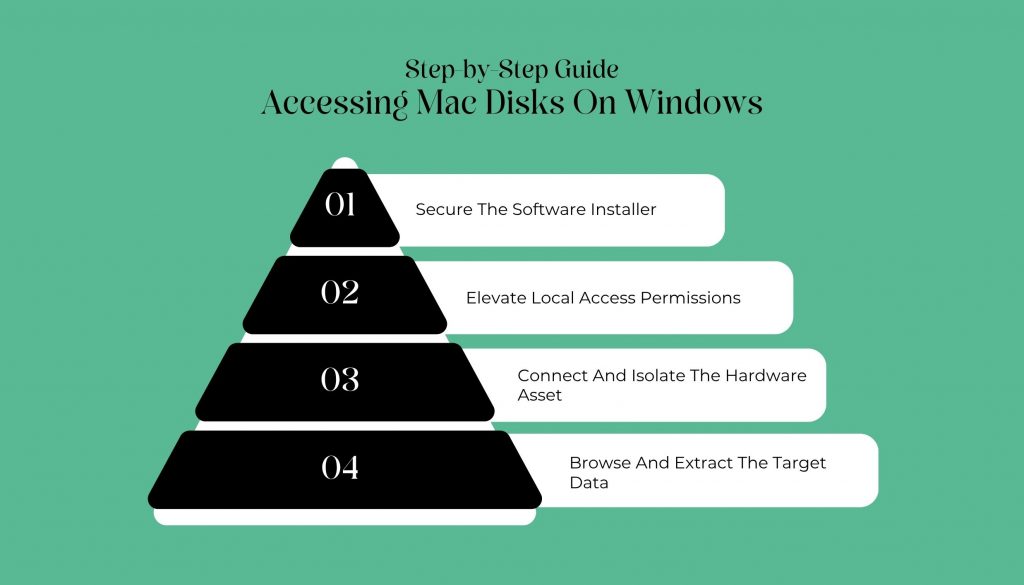
Step-by-Step Guide: Accessing Mac Disks On Windows
When a Mac-formatted drive is connected to a Windows machine, the operating system will often trigger a terrifying pop-up warning stating that the drive must be formatted before use.
You must always select Cancel on this prompt, as formatting will permanently erase your data.
Instead, follow this step-by-step layout using the utility found at gettransmac.com to safely extract your files:
1. Secure The Software Installer:
Navigate to gettransmac.com or the official Acute Systems Portal to download the authentic installation package (tmsetup.zip).
Run the setup script to install the software on your local drive.
2. Elevate Local Access Permissions:
Locate the software shortcut on your desktop, right-click the icon, and select Run as Administrator.
This elevation is mandatory; without it, the utility cannot bypass standard Windows kernel safety rules to read low-level disk sectors.
3. Connect And Isolate The Hardware Asset:
Plug your external Mac-formatted drive into an available USB port.
The software's left-hand navigation pane will automatically update to display a full list of:
- Connected Physical Drives
- Internal Partitions
- Apple-Configured Containers
4. Browse And Extract The Target Data:
Click the target drive icon to expand its active directories. Browse through the file tree exactly as you would on a native Mac system.
To save a file, right-click the item, select Copy to, and designate a safe destination folder on your local Windows storage drive.
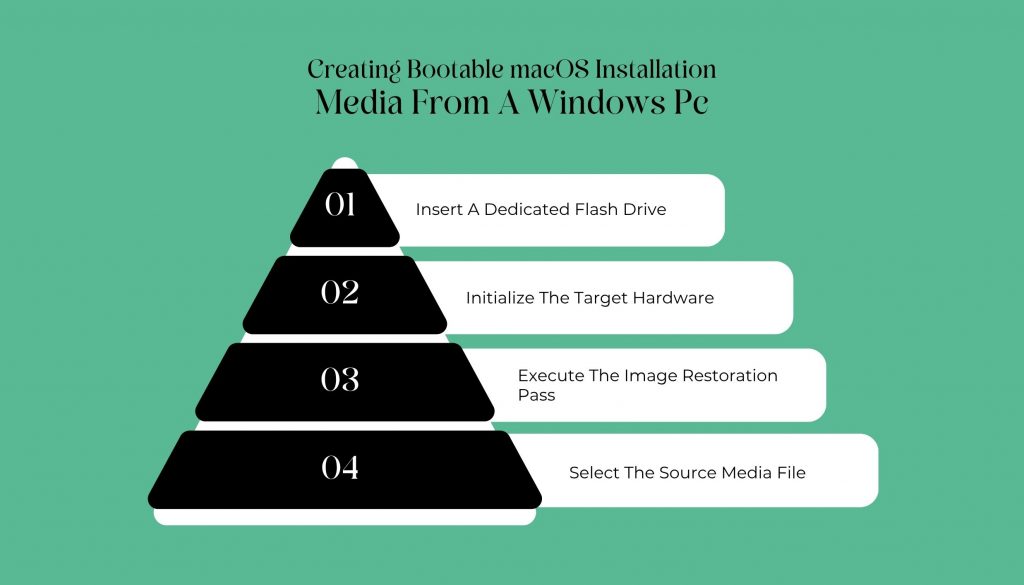
Creating Bootable macOS Installation Media From A Windows Pc
Beyond simple data recovery, the primary technical use case for the software downloaded via gettransmac.com is writing Apple disk images directly onto portable USB media from a Windows environment.
This process is vital for IT support teams who need to rebuild a crashed Mac computer but only have a Windows workstation available to create the recovery drive.
1. Insert A Dedicated Flash Drive
Plug in a clean USB flash drive (minimum capacity of 16GB).
Note that this process will completely overwrite the entire partition structure, so back up any existing files first.
2. Initialize The Target Hardware
Right-click the flash drive inside the application menu and select Format Disk for Mac.
This wipes out any master boot record conflicts and prepares the drive for Apple's partition schemes.
3. Execute The Image Restoration Pass
Once the format pass completes, right-click the newly prepped drive partition and select Restore with Disk Image.
4. Select The Source Media File
Browse your local directory to select your downloaded macOS .dmg installation file.
Click OK to start the flashing process.
Avoid disconnecting the drive or putting your computer to sleep until the progress bar hits 100%.
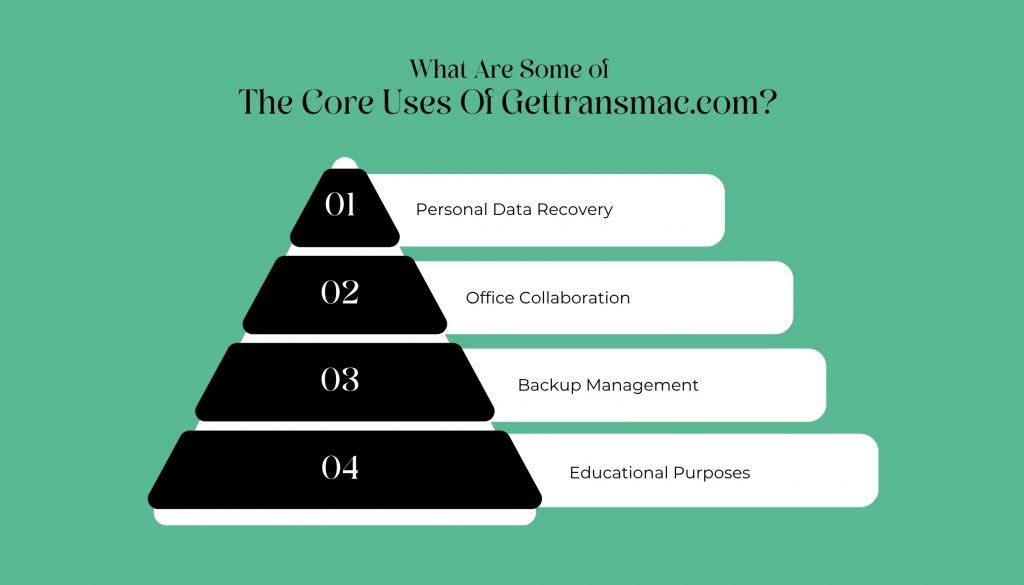
What Are Some of The Core Uses Of Gettransmac.com?
Various users benefit from Mac drive access tools for a range of purposes, and understanding these common use cases can help beginners integrate this software into their workflows.
1. Personal Data Recovery
Many individuals utilize these tools to recover cherished family photos, videos, and important documents from older Mac hard drives that may no longer be operational.
2. Office Collaboration
In a business context, exchanging files between Windows and Mac devices is a common practice.
Having easy access to drives from both operating systems can significantly enhance operational efficiency and minimize compatibility challenges.
3. Backup Management
Users who manage multiple storage devices can conveniently access archived backups without needing a dedicated Mac, making the process more seamless.
4. Educational Purposes
Students often find themselves in mixed operating system environments.
Accessing files created on different platforms is essential for their coursework and collaborative projects.
What Are Some Notable File System Access Constraints?
The app handles different Apple file structures with varying levels of access:
| Apple File Structure Class | Read Capabilities | Write Capabilities | Ideal Operational Use Case |
| HFS / HFS+ Volumes | Fully Supported | Fully Supported | Legacy recovery and reading older Apple external drives. |
| APFS Volumes | Fully Supported | Read-Only Mode | Extracting data from modern macOS solid-state backups. |
| DMG Disk Images | Fully Supported | Fully Supported | Burning bootable macOS installation media. |
Gettransmac Com Is Here To Make Our Lives Easier
Utilizing the technical utility provided through gettransmac.com removes one of the most frustrating roadblocks in cross-platform IT administration.
Additionally, you must grant Windows operating systems the explicit ability to parse, read, and extract data from encrypted APFS.
In fact, they will need the same to extract information from legacy HFS+ storage spaces.
This way, the software prevents accidental data loss and eliminates unnecessary file-conversion steps.
Whether you are a digital forensics specialist recovering assets from a Mac drive or a system administrator creating deployment flash drives on a Windows machine, running this utility with elevated administrative permissions ensures reliable data transfers.
Understanding these specific file system limits and deployment steps keeps your cross-platform workflows moving efficiently without data corruption.