












WhatsApp Not Working? Here’s How to Fix Connection And App Crashing Issues
When WhatsApp isn't working, the issue is usually caused by a local network connection failure or an outdated app version. Additionally, it can be caused by a rare yet impactful reason of a broader Meta server outage. Before changing your device settings, check an external status checker like Downdetector to confirm whether a global outage is blocking traffic. If first-party servers are fully operational, executing localized app resets and clearing the temporary cache will immediately resolve the communication block. Why Is WhatsApp Not Working On My Phone? Here’s a swift look at a few of the issues that could cause WhatsApp to malfunction on your phone: 1. Internet Connectivity WhatsApp may not be functioning on your phone because you may have neglected to turn on the internet. Or there may be a connectivity problem. Sending and receiving calls via the instant messaging app requires an internet connection. To check whether your internet is working, try using different apps or browsers. If something appears to be wrong, make sure you are connected to Wi-Fi or mobile data. You can always get in touch with your internet service provider if nothing else works. WhatsApp Not Working: How To Enable Data Connectivity To enable internet connectivity on your device for WhatsApp to work, keep your mobile data on. If not, you must be connected to an active Wi-Fi. Here's how to activate your phone's mobile data. To enable mobile data on both iOS and Android smartphones, slide down the notification panel and tap the arrow icon. If you cannot locate it, proceed with the steps listed below to activate the internet on your device: Open Settings. Go to the SIM card and mobile data or Mobile Data management section, depending on your OS. Toggle the Mobile data switch. 2. WhatsApp Is Dated Verify that your WhatsApp is up to date if everything else with your internet connection seems normal. WhatsApp frequently stops supporting older versions, which might leave your data vulnerable to hackers. WhatsApp frequently releases new versions with enhanced security and other features. The app can stop functioning if you use an outdated version for an extended period. You'll receive a notification saying that, to continue using WhatsApp, you must update. Upgrade WhatsApp if you receive a message like this when you launch it. To update WhatsApp, click the Download icon located at the bottom of the screen. WhatsApp Not Working: Ways To Update WhatsApp Here's how to manually update the app, in case you'd like to: Launch the App Store and Play Store, then look up WhatsApp. To update WhatsApp, click the WhatsApp search result and press the UPDATE option. It is not usually necessary to update WhatsApp frequently in order to utilize the service. But to stay safe, make sure you're using the most recent version in order to avoid any problems. 3. Account Deleted This can also be the cause of WhatsApp not functioning properly on your device. It's possible that WhatsApp erased your account if you haven't used it in a long time. In the event that your account is inactive for 120 days, WhatsApp retains the right to remove it. WhatsApp claims that it takes these precautions to protect users' security and privacy. WhatsApp won't erase your account as long as your smartphone is connected to the internet and has WhatsApp installed. The only thing you can do in this situation, if your account has been destroyed,d is to make a new one. 4. Smartphone Expiry Each year, WhatsApp publishes a list of gadgets that violate the platform's security and privacy guidelines. WhatsApp is forced to stop operating when the business stops providing support for these smartphones. Most of these gadgets are running outdated operating systems (OS). Recently, WhatsApp support for Apple's first-generation iPhone SE, iPhone 6S, and iPhone 6S Plus, as well as handsets running Android 4.0.4 and earlier versions, was discontinued. As of right now, the app is limited to Android 4.1 or later, iOS 10 or later, and KaiOS 2.5.0+ devices. If WhatsApp isn't working on your phone, check your operating system and upgrade to the latest version if available. 5. WhatsApp Server Down This has to be the most obvious reason, which is beyond your control. If WhatsApp is unavailable, it won't function on your phone. Occasionally, a glitch in WhatsApp's servers could make it impossible for you to send or receive messages or even make phone calls. As it's a backend problem, your only options are to verify whether the servers are truly down and wait until WhatsApp provides a solution. If so, you have no choice but to wait until the massive instant messaging company resolves the problem. Hardware Access Auditing: Reviewing OS-Level Media Permissions Often, core messaging functions work perfectly, but localized sub-features like voice notes, video calls, or photo sharing remain locked down by operating system safety layers. · Microphone & Camera Access Blocks If your voice notes return a silent track or video calls crash immediately, your operating system has likely blocked background device access. To fix this, go to Settings > Apps > WhatsApp > Permissions and ensure the Camera and Microphone toggles are set to Allow only while using the app. · Media Gallery Access Scopes: Modern operating systems utilize scoped storage rules that prevent apps from viewing your full media directory. If you cannot attach photos to a chat, verify that your storage permissions are configured for Full Access rather than Selected Photos. The Remedies To WhatsApp Not Working Explained These were the potential causes of WhatsApp not functioning on your device, along with potential fixes. The remedies provided in this post to fix WhatsApp not working are thorough. After reading over these answers in detail, you will be well-equipped to protect yourself from scenarios that could cause you distress when using WhatsApp. If you have thoughts to share or questions to ask about WhatsApp not working, please leave a comment below. We would love to hear from you! More Resources: Ways To Fix YouTube “Something Went Wrong” Prompt Mastering The Art Of Connecting: How To Reach Out To A Recruiter On LinkedIn Get Rid Of Boring Instagram Theme: Learn How To Change Theme On Instagram
READ MOREDetails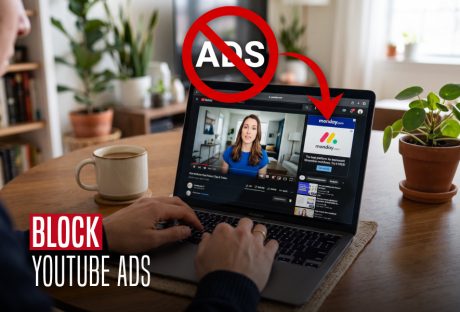
How To Block YouTube Ads: Complete Desktop And Mobile Guide
Tired of those annoying YouTube ads interrupting your gaming? You are not alone. These ads have been a part of the platform almost since its inception. But users prefer to stay away from them. At the end of the day, ads — especially those that can't be skipped — waste your time. They also consume more data and invade your privacy. As much as we hate them, YouTube ads are here to stay. The company's advertising revenue alone was $7.96 billion in the last quarter of 2022. In addition, YouTube's main source of revenue is advertising. Fortunately, there are several ways to block YouTube ads. In this article, we'll explain how to block YouTube ads. You could use premium ad blockers as well as several other methods. Why Would You Want To Block YouTube Ads? Although ads are always on YouTube, you don't have to get used to them. After all, there are some very good reasons to block these ads, such as: 1. Avoid Distractions YouTube ads can be quite annoying, especially if they are loud, flashy, or completely unrelated to the video you are watching. Not to mention the endless unskippable ads. By blocking ads, you can focus on the content you want to see without being interrupted. 2. Save Time Usually, the longer the video, the more ads are placed. So it's especially time-consuming if a 20-second ad appears every 2-3 minutes in a one-hour video. Blocking these ads will help you watch content faster without unnecessary pauses. 3. Save Data And Battery YouTube can consume a lot of data and battery. This is especially annoying if you have a limited data plan or watch videos on the go. Blocking ads can significantly reduce the use of these resources, saving both time and money. 4. Malware Protection It's not unheard of for some YouTube videos to contain malware or other harmful content. By blocking these ads, you can easily avoid damaging your device and damaging your personal information. 5. Ensure Privacy As you already know, YouTube ads are targeted. This means that YouTube will show you ads based on the personal data it collects about you. Information is collected by trackers that follow you online. Good ad blockers such as Total Adblock can effectively remove trackers to protect your privacy. How To Block YouTube Ads Step-by-Step Follow these precise sequential actions to execute script filtering using your desktop environment: 1. Initialize A Chromium Or Firefox Browser To begin, launch a secure web browser like Google Chrome, Mozilla Firefox, or Microsoft Edge on your computer. Once open, clear your browser cache to ensure legacy advertising-tracking cookies are removed. 2. Access The Official Web Extension Store Navigate directly to your specific platform’s add-on marketplace, such as the Chrome Web Store or Firefox Add-ons repository. Subsequently, type a verified, open-source content filter like uBlock Origin into the search bar. 3. Deploy The Filter Extension Node When the targeted application profile loads, click the Add to Chrome or Get button to initiate deployment. Immediately after selecting it, click through the security confirmation prompt to grant the script container permission to modify web data. 4. Optimize The Extension Configuration Dashboard Once installed, click the puzzle piece icon in your top toolbar and open the extension's control panel settings gear. Next, navigate immediately to the Filter lists tab to reveal the underlying script categories directory la 5. Force Immediate Script Database Updates Within this command grid, scroll down to check the box for automated built-in filters like uBlock filters – Quick fixes. Subsequently, click the prominent Update now button at the top of the interface to download the latest ad-blocking definitions. 6. Verify Content Delivery Performance Open a fresh browser tab and navigate directly to the main YouTube interface. Launch any high-demand media file to confirm that video ads, sidebar banners, and mid-roll interruptions are filtered out successfully. Troubleshooting Matrix: Common Block YouTube Ads Issues These are some of the most common problems you will notice when you are about to block YouTube ads. Here’s how you can deal with them: · Ad-Blocker Detected Banners Populate YouTube's anti-adblock scripts identified your extension signature. Clear your browser cache manually, open your filter settings dashboard, click "Purge all caches," and force an immediate filter reload. · Video Playback Loops Freeze The active script block accidentally broke a core video player asset layer. Turn off secondary extensions one by one to isolate the conflict, or switch your platform footprint to a native privacy engine like Brave. · Smart TV Advertising Still Injects TV applications bypass browser extensions by streaming video and ad data from identical server sources. To fix this, deploy a custom third-party open-source app wrapper like SmartTube on your television hardware instead. Applying Hacks Found On Reddit Redditors have found that appending a period to the site name is an easy way to get rid of advertisements from YouTube videos. This hack was first discovered on Reddit and then by Android Police. It is as easy as adding a period (full stop) to the URL after the .com. This appears to eliminate all commercial overlays, mid-roll adverts, and ads that could otherwise be displayed during the video. The method appears to be limited to specific browsers. In some tests, it worked with Chromium-based browsers like the most recent Microsoft Edge and non-Chromium Safari, as well. It also worked on Google Chrome on Mac desktop and Android mobile devices. But it didn't work on Firefox. In which case, adding the period just took me back to the YouTube homepage. Block YouTube Ads: Best Practices To Follow These are some tips that you can follow that will help you block YouTube ads effectively: · Avoid Overlapping Ad-Extensions Never run multiple content filter extensions simultaneously in the same browser session. Doing so creates resource-contention loops that slow page speeds and increase detection risk. · Enforce Incognito Testing Layers Run your ad-filtering configurations inside private browsing windows. This simple step prevents browser profiles from cross-contaminating cache layers, making it easier to troubleshoot script blocks. · Preserve Clean Operational Subnets If you implement router-level tools like Pi-hole, isolate your smart home appliances onto a secondary Wi-Fi subnet. This structure keeps ad-blocking maintenance confined to your main viewing devices. How To Block YouTube Ads Explained Admittedly, blocking YouTube ads in browsers is easier. Plugins like Enhancer for YouTube can quickly eliminate them. You can then use other useful features, like adjusting the video window size or playback speed. If you have thoughts to share or questions to ask, please leave a comment below. We would love to hear from you! Learn More About: How to Stream on YouTube Effectively? What Are The Three Components In The Youtube Ecosystem? The Zen Of Video Sharing: What Is Ambient Mode On YouTube
READ MOREDetails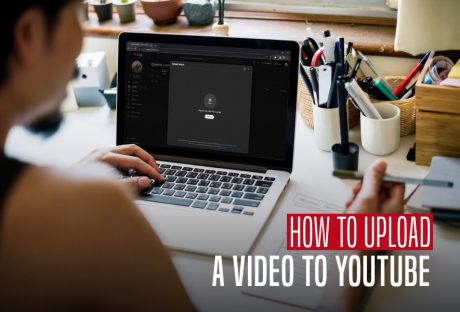
How To Upload A Video To YouTube: The Latest Guide In 2026
With billions of people that are online every day, YouTube is a goldmine for prospective content producers. It's one thing to understand how to launch a YouTube channel. It is a whole different thing to be aware of how to expand your YouTube channel like a pro. It involves more than just uploading films in the fast-paced digital world of today; it also entails building real relationships, inspiring creativity, and embracing the craft of storytelling. Imagine a cooking show where a great chef delivers delectable recipes and captivates viewers with their contagious enthusiasm for culinary treats. Or imagine a travel writer who chronicles amazing adventures throughout the world. You could transport readers to gorgeous locales through captivating narratives and stunning images. Who would not hit "like" and "subscribe" if they were a tourist or foodie? We'll cover the methods for producing captivating videos that leave an impression on viewers. We will also talk about optimizing material for search engines to boost discoverability and foster meaningful connections. With this, you will be navigating YouTube's always-evolving environment with ease. How To Upload A Video To YouTube: A Step-By-Step Guide YouTube is the best platform for publishing video material. In fact, YouTube has nearly become synonymous with online video at this point. A billion hours of video are seen on YouTube each day by its more than 1.9 billion monthly active users. That is equivalent to watching video every day for more than 114,000 years, to put it in perspective. Leading YouTube content producers can earn hundreds or even thousands of dollars each day. Ironically, though, creating videos isn't really necessary to succeed and earn money on YouTube. So, how exactly DO you succeed on YouTube? Here are some of the best approaches by YouTubers that demonstrate exactly what you should (and shouldn't) do while creating content for YouTube. Here’s everything, step-by-step, for you to make a successful YouTube video: 1. Initialize the Upload Portal To begin the process, navigate directly to your web browser and open the YouTube Studio dashboard backend interface. Once the main command screen loads, look toward the top right corner and click the prominent blue Create button. Immediately following this action, a dropdown menu will appear where you must select Upload videos to launch the cloud ingestion pipeline window. 2. Select and Transfer Your Master Media File When the interface updates, click the large Select Files button located in the center of the upload window to open your local system directory. Next, browse your internal hard drive folders to choose your optimized MP4 video asset. Consequently, the background data transfer will initiate automatically, and a real-time progress indicator will display while the server receives your file blocks. 3. Optimize Title and Structural Description Elements While the file transmits in the background, you must pivot your attention to refining your primary on-screen search metadata. Therefore, input a compelling, keyword-rich headline into the mandatory Title field to capture immediate consumer interest during search queries. Furthermore, draft an exhaustive overview within the Description box. You can use clear transitional phrases to break down your video sections and incorporate strategic keyword variations. 4. Upload an Eye-Catching Custom Thumbnail Graphic To maximize your click-through rate, move down the configuration panel to locate the dedicated imagery module. At this point, click the Upload Thumbnail tile to source a custom, high-resolution graphic directly from your computer storage. As a result, this visual asset will override the automated, blurry frames captured by the server, ensuring your video presents a polished and professional exterior on user feeds. 5. Configure Audience Restrictions and Age Gate Rules Before moving forward to advanced indexing arrays, you are legally required to verify your target demographic parameters. Scroll downward through the primary options list to locate the mandatory COPPA compliance checklist. Subsequently, explicitly toggle the radio button to declare whether your content is tailored specifically for children. Thereby, this allows the system to apply appropriate data privacy shielding. 6. Inject Discoverability Tags and Content Categories After clearing the initial compliance hurdle, click the Show More text link to unroll the advanced indexing command layer. First, input highly relevant search Tags into the metadata field. Therefore, this separates your industry terms with commas to guide the search algorithm accurately. Next, select your exact video Language and assign your project to its primary industry category. This will ensure proper placement across global algorithmic recommendation networks. 7. Add Interactive End Screens and Info Cards Once the primary details page registers a completed status, click the blue Next button to move into the Video Elements workspace. Here, you can click the Add button next to the End Screen module to layer clickable subscription buttons over the final twenty seconds of your footage. Also, add interactive Cards at specific time markers. This will smoothly slide out during playback to direct viewers to external links or secondary playlists. 8. Execute Automated Copyright and Safety Verifications After finalizing your interactive elements, click Next again to move into the system-driven Checks backplane. During this phase, YouTube's automated scanning software processes your audio and video hashes to look for potential copyright strikes or monetization boundaries. As long as your background tracks utilize authorized assets, the security suite will display green checkmarks, giving you clear validation to proceed to final publishing safely. 9. Select Final Visibility and Publishing Windows Finally, click the last navigation node to open the Visibility configuration pane. In this matrix, choose whether to set your file to Private, keep it Unlisted for internal testing, or select Public to launch it immediately to your subscriber base. Alternatively, you can configure the automated Schedule calendar to lock in a future deployment date. Also, this ensures your content drops smoothly onto user feeds at the exact moment your target audience is most active online. Troubleshooting Matrix: Common Upload Errors Printers disconnect from local subnets, and digital video uploads sometimes encounter data parsing failures. Use this breakdown to solve common processing blocks: · Stuck at 0% Processing: Your file format utilizes a heavy, unoptimized codec profile. Convert the video into an MP4 file using HandBrake before re-uploading. · Abrupt Upload Freezes Your local internet connection dropped its dynamic IP lease. Keep the tab open; the system will resume data transmission automatically when connectivity returns. · Muted Video Audio The automated check scanned a copyright violation in your background music tracks. Swap the audio using the built-in, royalty-free YouTube Audio Library. How To Upload A Video To YouTube Explained Building a loyal audience and expanding a profitable YouTube channel can be difficult, especially if your genre has a lot of rivals. Still, success is possible with the right commitment, imagination, and tactics. You can gradually grow your channel's popularity and attract more viewers by consistently producing interesting content. Also, this includes using SEO to optimize your videos, engaging with your audience, and collaborating with other creators. Check out Contra if you're a freelancer looking to market and manage your services without paying commissions. You can promote your abilities and connect with potential clients on our Independent-first platform without paying any fees. Contra can help you find a freelance social media specialist if you're a client trying to expand your YouTube channel. Learn More About Youtube's: The Zen Of Video Sharing: What Is Ambient Mode On YouTube Youtube’s Ad Sales For Q3 Fy23 Surged By 12.5%, Reaching Nearly $8 Billion
READ MOREDetails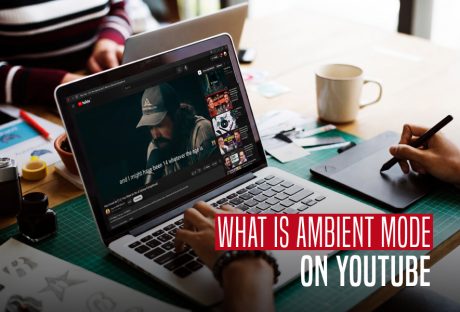
What Is Ambient Mode On Youtube: The Complete Viewing Guide
YouTube is a popular source of entertainment for many people. It has become increasingly user-friendly over time and has added several features to make the viewing experience more immersive. One such feature is Ambient Mode, which is available on iOS, Desktop, and Android. If you want to know what is ambient mode on YouTube, keep reading. We are going to give all the details here on how to go about this much-talked-about Ambient mode. What Is Ambient Mode On YouTube? Ambient mode on YouTube is a dynamic visual effect that projects real-time gradient colors from the video player onto the surrounding dark interface. This lighting configuration creates a subtle, glowing halo that eliminates harsh black borders. By splashing matching tints onto the screen background, it mimics the immersive ambient lighting setups found behind modern home theater televisions. However, you can't turn it on on its own. You need to follow a few steps to enable it. To enable Ambient Mode, first turn on your device's Dark Theme. This is required on iOS, Android, and Desktop. Once you have enabled the Dark Theme, play any video on YouTube and tap the gear icon in the player. Then, select Ambient Mode, and you can toggle it on and off by tapping it. When a video's color changes, the glow around the YouTube player changes, creating a fun effect. By projecting soft hues from the film onto your screen's background, Ambient Mode provides a lighting effect that makes watching videos in the Dark theme more immersive. It sought to replicate the impact of the light that screens produce in a gloomy area. It helps attract viewers and make the video even more prominent on our watch page. Both the web and mobile versions of this feature will have a dark theme. How Did Ambient Mode Come To Be? When tested, YouTube's Ambient Mode produced excellent results. This led to the feature's subsequent development. It is pretty easy to use Ambient Mode on the web, Android, and iOS as of late October 2022. Although the feature complements the platform's gloomy aesthetic, the co-dependency benefits the viewer. The experience of watching is heightened and increased since it draws the spectator in. Even YouTube altered its dark theme to make it even darker so that the colors of the ambient mode would stand out more and make the feature more useful. The platform turns on the ambient mode once the Dark Theme is activated because it is only compatible with YouTube's Dark Theme. How To Activate The Dark Theme In YouTube Ambient Mode? This means you must enable Dark Theme first. Ambient Mode will be activated automatically as soon as Dark Theme is enabled. How to activate Dark Theme is as follows: On The Web If you haven't already, visit YouTube.com and sign in. When your device is already running in dark mode, click on your Profile icon > Appearance > Dark theme or Use device theme. On iOS And Android Start the app. If your device is already set to use dark mode, choose: your Profile icon > Settings > General > Appearance > Dark theme or Use device theme. Although Ambient Mode is meant to be mild and peaceful, you may still turn it off if you find it too distracting. The steps for turning off Ambient Mode on the web, Android, and iOS are essentially the same: Go to the video you're watching and click the Settings gear. Then, to activate or deactivate it, choose Ambient mode from the menu that appears. (On the web, you'll choose the actual toggle next to Ambient mode.) When a feature is turned off for one video, it seems to be turned off for all future videos you watch. You must turn on Ambient Mode in the same manner you did to turn it off if you want it to appear once more. Strategic Trade-Offs: Visual Pros And Cons User Consideration System Advantage (Pros) System Limitation (Cons) Visual Immersion Heightens cinema effects during dark-room viewing. Can distract users focusing on detailed text sheets. System Resource Overhead Uses minimal processing power across modern web browsers. May slightly accelerate mobile battery consumption during long streams. Media Compatibility Works perfectly with high-contrast, colorful cinematography. Offers zero visual change during pure white screens. Troubleshooting Matrix: Why Is Ambient Mode Missing Or Greyed Out? Printers drop off networks, and digital interfaces sometimes lose functionality due to simple caching or environmental conflicts. If the setting disappears from your options gear icon, use this diagnostic checklist to restore it: Incompatible Light Interface The algorithm is physically hardcoded to run exclusively on dark backgrounds. If your system defaults to "Light Mode," the ambient toggle will be completely hidden from your settings wheel. Switch your appearance preferences back to Dark Theme first. Bypassed By Cinema Mode On desktop browsers, you will find an option that lets you use the ultra-widescreen "Theater Mode". This stretches to the absolute horizontal edges of your monitor. Therefore, this removes the padding space required to project the color wash. Switch back to standard view to see the halo. Disabled Hardware Acceleration Let’s say you have manually turned off hardware acceleration in your browser settings (e.g., Google Chrome or Microsoft Edge flags). Then, the underlying WebGL script cannot query your GPU. So YouTube automatically disables the feature to prevent system crashes. Sustainability And Device Comfort Extending video tones minimizes immediate eye fatigue during late-night viewing sessions. Traditional high-contrast displays stress optical focus paths due to harsh white-to-black value leaps. By contrast, gradient washing bridges this gap smoothly. Furthermore, keeping the layout active requires no external accessory hardware. Additionally, this turns standard monitor screens into localized bias-lighting matrices without additional equipment bills. So, now you know what is ambient mode on YouTube and much more. Learn More About: How to Stream on YouTube Effectively? Ways To Fix YouTube “Something Went Wrong” Prompt What Is YouTube Automation? Everything You Need To Know
READ MOREDetails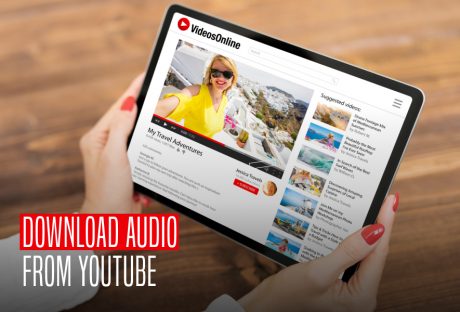
A Detailed Guide On How To Download Audio From YouTube Efficiently In 2026
When you want to listen to music on the road but don't have access to Wi-Fi, what do you do? By simply converting your YouTube videos to MP3, you can now effortlessly access your favorite songs, interviews, as well as other YouTube videos offline. Here are some of the easiest ways to download audio from YouTube. Apps To Download Audio From YouTube Web-based tools offer immediate conversion directly through your browser, requiring no local installation. However, their operational limits and file compatibility vary across platforms. Myconverters This utility parses URLs from YouTube alongside secondary platforms like: Facebook Vimeo Instagram Users insert the link, select the audio tab, and trigger the server-side compiler. Finally, a local browser prompt delivers the finished MP3. 320YTmp3 This portal focuses specifically on variable bit-rate adjustment. After you paste the source URL, the interface opens a quality dropdown menu ranging from 64 kbps to 320 kbps. Additionally, it supports alternative container formats like WebM and M4A. MP3 Download Unlike multi-site scrapers, this platform restricts inputs strictly to YouTube links. It provides precise compression options, allowing users to select small, optimized files or uncompressed formats. It also exports high-fidelity audio wrappers, including WAV and FLAC. YTMp3 This tool uses a simplified layout to process long-form audio files. Specifically, the engine converts videos up to 90 minutes long for free. Users toggle the blue selector bar to MP3 mode, initiate processing, and download the output directly. Legal And Compliance Warning Extracting audio streams from YouTube via third-party software is known as stream ripping. Now that we know all about it, here’s some significant information. It directly violates YouTube’s Terms of Service. Section 5 of the platform's legally binding contract explicitly prohibits users from accessing, reproducing, or downloading content. Also, it is prohibited if done through any unsanctioned, unofficial user interface. Beyond a standard breach of contract, converting these files raises severe legal risks under international copyright laws. Stripping audio data from commercial music videos, syndicated podcasts, or protected broadcasts without explicit licensing constitutes digital piracy. While personal, noncommercial use rarely results in direct litigation against individual consumers, search engines actively penalize and derank platforms that promote copyright infringement or metrics manipulation. Authors must explicitly verify that any file targeted for conversion is entirely in the public domain or has a valid Creative Commons license. Cybersecurity Risk Matrix The free model utilized by web-based audio converters relies heavily on high-risk monetization mechanics. Because these portals cannot run mainstream ad networks, they partner with untrusted third-party advertising syndicates. The worst part is that they inject aggressive scripts. Additionally, they inject tracking cookies and malicious redirects into the user path. Operational Threat Vector Mechanics Technical Severity Device Mitigation Action Malicious Pop-Under Redirects Clicking "Convert" triggers background tabs leading to unverified betting portals or phishing setups. Moderate Deploy robust network script blockers like uBlock Origin. Fake System Update Prompts Deceptive warning banners mimic Windows or Android security alerts to trigger a file download. High Immediately terminate the browser process; never click "Fix System". Executable Payload Spoofing The system delivers an executable file (.exe or .apk) disguised under an audio file name [PDF: 0.1.2]. Critical Check file extensions; delete any file that does not end natively in .mp3 or .wav [PDF: 0.1.2]. Invasive Browser Notification Hijacking Persistent background scripts spam desktop prompts containing adult content or fake ransomware scares. Low to Moderate Revoke notification and clipboard permissions for the converter domain. How To Download Audio From YouTube Explained These five simple techniques can convert your YouTube video to an MP3. The only thing left is to convert your favorite music and podcasts to MP3 so you can listen to them offline. In this illustrated article, you can also learn how to download your favourite YouTube video as an MP4 file. Using InVideo's online editor, you can quickly add your downloaded track to your own video. Just remember to check that it is copyright-free before posting it to your social media accounts. Everything you need to know about YouTube Video to MP3 Conversion is summarized in this post. To convert YouTube videos into MP3 files, all you need to do is just select the converter. Learn More About This Social Media Platform: Is Youtube Social Media? Know Your Answer Here Ways To Fix YouTube “Something Went Wrong” Prompt Everything You Need To Know About YouTube Live In 2023
READ MOREDetailsPopular

Technologies For Creating A Startup Idea
20 Feb 2023

How to Download Facebook Videos on Android?
07 Feb 2019

7 Rules of Effective Ecommerce Web Design
28 Jan 2021

Why Are Online Transactions Convenient?
07 Dec 2023
Recent