











Category: Facebook
ContentRally is a leading source of reliable news and trending topics on FaceBook. Get hard-to-find insights and advice on FaceBook from industry-specific leaders.
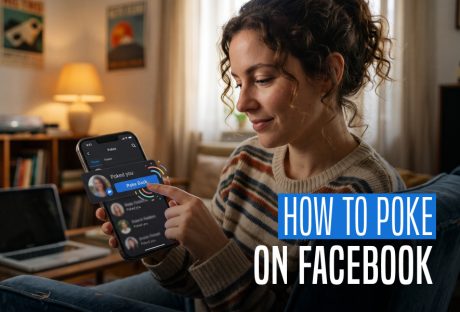
Nostalgia Reborn: How To Poke On Facebook In The Gamified Era
If you have been on the platform for a while, you probably recall a chaotic period in the late 2000s when “Poke Wars” dominated social media. Back then, a tiny pointing finger icon sat proudly on everyone’s profile, allowing you to give friends a digital nudge. It was a virtual and wordless gesture, which is a mindful cycle of tapping back and forth just because you could. Over the years, the feature faded into obscurity, leading most users to assume it was dead and buried. However, Meta recently breathed new life into legacy tool with a massive and gamified upgrade. If you want to dive back into the trend, here is your ultimate guide on how to poke on Facebook. Are Facebook Pokes Still A Thing? Naturally, poking became perceived as a sloppy kind of flirting. Enter "Facebook Poke" into Google and look up related queries such as "what do pokes mean in Facebook" and "is a Facebook poke flirting?" However, the majority of people asked us, "Is this still a thing?" and "can you still poke on Facebook" when we brought up the subject of Facebook Pokes. The answer is yes. Facebook Pokes are still there, but they're not at the top of the page anymore. On desktop and mobile devices alike, you must click or tap several times before you can Poke because the Poke has been hidden behind a menu. Majority of Facebook users appear to have completely forgotten about the Poke. How To Poke On Facebook? Thanks to the recent interface redesign of Meta, you no longer have to dig through complex drop-down menus to find the button. The process is incredibly straightforward across all devices. A Step-By-Step Profile Method: For Desktop And Mobile App So, poke is still a thing on Facebook. In order to poke someone, you first need to go to their profile then tap on a “pointing finger” below their name. If someone pokes you, you can tap the notification to view the Pokes dashboard so that you can poke them back. You can aslo find friends to poke by going through that dashboard. Here is a step-by-step guide to how to poke on Facebook: Go to your Facebook app or desktop browser and open the profile page of the friend you want to nudge. Look directly below their name and profile picture (right next to the Message button). If the feature is active for your account, you will see a dedicated Poke button. Tap or click it, and you are done! Using The Centralized Dashboard If you want a quick way to view your active streaks or see who has nudged you recently, Facebook now features a centralized dashboard. Tap the Search bar at the top of your Facebook feed. Type "Pokes" or "Poking" into the search bar and select the official shortcut. This opens a dedicated screen displaying your Poke counts, recent history, active streaks, and a list of suggested friends to poke. What Are Facebook Poke Streaks? With the recent gamified revival of the feature, poking is no longer just a one-off digital nudge. Instead, Meta has introduced Poke Streaks. This is a feature which is heavily inspired by modern messaging apps to encourage friendly and continuous interaction. How To Streaks Work Knowing how to poke on Facebook, now you might be wondering how streaks work. The Activation: A streak officially begins once you and a friend poke each other back and forth for three consecutive days. Streak Emojis: Once active, a special fire emoji (🔥) will appear next to your friend’s name on your centralized Pokes dashboard. Milestone Rewards: As your streak number grows into weeks or months, the platform rewards your dedication by unlocking rare milestone emojis, such as the 100 badge (💯) or a celebration emoji, displaying your streak count proudly to both participants. Keeping Your Streak Alive In order to maintain your status, both you and your friend must poke each other at least once every 24 hours. If either person forgets to send a digital nudge back within the daily window, the fire icon vanishes. Furthermore, your streak count resets to zero. It is a fast and wordless way to stay passively connected with close friends every single day. Keeping The Peace: The Golden Rules Of Poking Before you start clicking wildly, it is helpful to understand the underlying mechanics of how the system functions. One Poke At A Time You cannot spam someone with endless notifications. Facebook’s algorithm only allows you to poke a user once. You are completely locked out from nudging them again until they choose to tap the button back. If you try to re-poke someone who has not responded, you will simply see a pop-up letting you know your previous nudge is still pending. How To Reject A Poke? We've already talked about how to poke someone on Facebook, but how do you reject one? Rejecting something on Facebook is as simple as poking at it. You always have the choice to ignore someone's pokes if you don't want to respond to them. Furthermore, you can remove these unwanted pokes from Facebook by clicking the "X" icon next to the notification. If the poke notifications are still bothering you, you can immediately block the sender. Nevertheless, it is important to remember that Facebook does not permit users to poke someone more than once. This implies that you won't be bothered by someone on Facebook or have several pokes from the same user flood your notification panel. The Ultimate Trend Reborn Facebook's Poke feature was all the rage in 2007. People were swiping back and forth on Facebook! For fun, they used to poke their teacher, crush, family, as well as friends. It was a huge thing and sparked discussions. Sadly, the feature's use waned in 2011, and Facebook decided to discontinue it in favor of new and exciting features. Most users nowadays are unaware of the secret existence of this feature. It does, surprisingly, but it's not too convenient. Facebook has the potential to transform the "Poke" gesture into something more interesting and viral. It will remain a legacy feature and the source of many friendships until then. For some, it's even a stroll down memory lane. Whether using the Facebook Main App, Facebook Lite App, or Facebook desktop mode, the option is still available. Now that you know how to poke on Facebook, you will now be able to use the feature on Facebook. Check it out on Facebook and give it a whirl! If you have thoughts to share or questions to ask, please leave a comment below. We would love to hear from you! Learn More Also: Here Is How To Delete A Facebook Page Easily How To Stop Scammers On Facebook Marketplace? Guard Your Space: A Step-by-Step Guide to Locking Your Facebook Profile
READ MOREDetails
Beyond The Algorithm: The Ultimate Blueprint On How To Get Rid Of Ads On Facebook
We all know that Meta owns Facebook. Additionally, Meta heavily relies on its algorithmic advertising engines to fuel its massive data infrastructure. For everyday users who scroll their timelines, the constant influx of sponsored posts, behavioral tracking scripts, and hyper-targeted feed disruptions remains an ongoing frustration. As a result, the tech giant inherently resists providing a native, free button to completely eliminate advertisements. However, the core rules of user control have evolved. Consequently, if you want to learn how to get rid of ads on Facebook, navigating the platform requires a deep understanding of Meta’s newest privacy architectures. Besides this, you also need to evaluate the localized compliance updates. Fortunately, from automated backend machine-learning shifts to advanced browser network filtering, you can decisively reclaim your digital screen space. The Meta Accounts Center Framework First of all, Meta operates a highly centralized data ecosystem. For instance, the platform automatically tracks user actions, off-site browsing histories, and demographic profile points to construct precise consumer targets. Because of this tracking, figuring out how to get rid of ads on facebook starts directly inside this centralized control hub. Reconfiguring Internal Ad Settings You can fundamentally alter what the algorithm can see and use. To prune your tracking profile, open your Facebook application or log in through a web browser. Click on your profile image or the menu corner to open the dropdown navigation interface. Choose Settings & Privacy, then click Settings to reveal the master account panel. At the very top of this interface, click on the unified Meta Accounts Center dashboard. Scroll down to the Account Settings header and select Ad Preferences. This designated privacy area is divided into targeted zones engineered to alter your commercial visibility metrics. Customizing Advertisers And Core Topics Inside the Ad Preferences interface, click on the Customize Ads tab to view active market forces. In particular, look at the specific section labeled Advertisers you saw ads from. This section displays a dynamic list of companies that have served sponsored content to your feed over the past few days. Therefore, you can click the Hide Ads button next to any business entity to permanently banish their campaigns from your view. Next, navigate to Ad Topics and select the See All link. Following this, click on individual topics and select See Less. As a consequence, this manual action explicitly instructs the machine-learning delivery system to deprecate these specific commercial themes when calculating your algorithmic feed layout. Hardening Information Permissions To maximize data security, select the Manage Info tab within the same portal. Click on Profile Information to view your personal registration details. Advertisers frequently target users based on identity flags. Toggle off the individual switches for your relationship status, current employer, job title, and education history. Finally, open the Ads with your social actions menu. Set this permission strictly to Only Me. Consequently, this prevents Meta from using your page likes, post reactions, or comments as automated endorsements displayed directly to your friends. The Definitive Playbook For Ad-Free Browsing Strategic ApproachCore MechanismPractical LimitationsTarget PlatformsMeta Subscription ModelRegional paid opt-out halting behavioral profilingAvailable only in specific compliant jurisdictionsWeb and Mobile AppsOpen-Source ExtensionsNetwork request interception and cosmetic DOM filteringIneffective inside native smartphone applicationsDesktop BrowsersPrivacy-Focused BrowsersIntegrated native ad-shielding and tracker blockingRequires abandoning stock browser appsAndroid, iOS, and DesktopAd-Hoc Feed CurationManual report loops and real-time algorithmic signalsRequires continuous manual maintenanceAll Interfaces Tactical Exploits Beyond Native Settings Because Meta’s internal preferences only reduce personalization rather than reducing total ad volume, true visual removal requires external third-party tools. Deploying Open-Source Desktop Extensions If you primarily access the platform on desktop environments via Chrome, Firefox, or Safari, browser extensions offer excellent visual mitigation. Moreover, standard ad blockers often struggle against Meta's dynamically changing CSS code layouts. However, community-maintained tools like uBlock Origin remain highly effective. These extensions work by analyzing and blocking network connection requests directed toward known tracking domains. They also run cosmetic filtering scripts that strip out the underlying HTML structure of sponsored feed elements, completely cleaning up the desktop interface. Shifting To Shielded Web Browsers For mobile and standalone environments, running your account through an isolated, privacy-centric application bypasses the constraints of native app store versions. The Brave Browser features built-in ad-shielding protocols that block tracking scripts and sponsored posts automatically. Shifting your scrolling habits away from the native app to a secure web environment cuts off the background data collection loops that fuel targeted marketing. Manual Live Feed Defenses When a sponsored post breaks through your perimeter while scrolling your feed, you can issue a direct structural correction. Click the three horizontal dots located in the upper-right corner of the ad unit. Select Hide Ad to clear it from your sight instantly. If the post displays deceptive claims, counterfeit products, or suspicious links, select Report Ad instead. This sends a direct negative data signal to Meta’s content moderation engine, lowering the relevance score of similar commercial campaigns across your account. The Legality And Economics of User Interception Using network filters, cosmetic stylesheet adjusters, and ad-blocking software is completely legal. Court rulings have consistently established that users have a right to control what data enters their hardware devices and how that information is rendered on their private screens. Modifying your local browser display does not break copyright law or violate platform agreements. The Rise Of The Paid Zero-Ad Alternative In response to changing global privacy frameworks, Meta offers a formal, paid ad-free subscription model for users in specific regions, such as the European Union and the United Kingdom. By paying a monthly fee through the Meta Accounts Center, users can completely turn off behavioral profiling and sponsored tracking. This subscription instructs the platform's servers to stop serving ads entirely across all linked Facebook and Instagram profiles, serving as a reliable path for complete ad removal. Reclaiming Your Digital Boundaries The ongoing friction between platform monetization and data privacy shows no signs of slowing down. While Meta continues to iterate its machine-learning systems to prioritize broad targeting and automated creative delivery, you are not powerless. By systematically hardening your Meta Accounts Center permissions, deploying open-source desktop extensions, and leveraging privacy-centric mobile browsers, you can completely redefine your social media environment. Managing your data footprints and interface layout lets you transform a commercialized digital storefront back into a personal space focused on genuine connection. Learn More Also: Why And How To Access Facebook’s Full Site In 2024 Incognito Mode: How To Post Anonymously On Facebook? What Is Facebook Touch? Everything You Need To Know About It
READ MOREDetails
How To Become A Facebook Developer: The Transition To Meta For Developers
Facebook is not just a social network anymore. Instead, it operates as a massive dev engine connecting billions of active users every single day. Consequently, for anyone looking to break in as a Facebook developer, this footprint offers an incredibly massive playground. Specifically, your goal may be to build cross-platform software, launch intelligent chat setups, or use social connectivity to scale a business. Therefore, getting a firm handle on this ecosystem is easily one of the smartest career moves you can make right now. The Real Story: Moving Beyond Just “Facebook” If you are looking up how to become a Facebook developer, your first lesson is to shift your landscape. Pages, documentation, and industry job boards still heavily lean on the classic phrase. However, the actual engineering ecosystem officially operates under the Meta for Developers brand. This change matters. The reason behind this is that you are not just coding features for a desktop news feed anymore. Instadm, a modern setup requires you to work with unified data permissions across an entire family of apps. The list includes Instagram, WhatsApp, Messenger, and Threads. The access tokens you generate and the backend logic you write will run across this entire interconnected network. At its core, a Facebook developer creates code that talks directly to this massive infrastructure. This allows creators and tech companies to automate workflows, build social games, or run seamless digital stores. This helps to keep users engaged without forcing them to leave the app. Bringing AI Into The Mix Building on the platform these days involves a lot more than just adding a simple share button. Modern Facebook developer teams are heavily relying on open-source machine learning models, like Llama, to build smarter user experiences. Think less about basic photo tags. Instead, it is more about automated customer support agents that manage full checkouts in Messenger, or hyper-targeted recommendation engines. These surface content tailored precisely to a user’s behavior. High-Value Benefits Of Building On The Platform Core BenefitStrategic Advantage for DevelopersAudience FootprintDirect access to an audience measured in billions of active global profiles.Organic ViralityBuilt-in sharing tools let users blast milestones to feeds, driving free traffic.Monetization EnginesTurn code into cash via the Audience Network, targeted ads, and checkouts. If you are ready to build something real, here is exactly how to get your environment ready, configure your code, and ship your first application. What Is AI Facebook App Development? The process of developing applications for the Facebook platform that uses artificial intelligence (AI) is known as Facebook AI app development. These applications use AI algorithms to automate tasks, improve user experiences, and customize content. There are many types of AI-powered features. Some of them are intelligent chatbots, facial recognition for photo tagging, and sentiment analysis for content recommendations. There is also predictive analytics for targeted advertising. These are a few incredible advantages of developing a social network application, such as a Facebook app. Getting Started As A Facebook Developer Before you start writing code, you need to set up your digital workspace. Step 1: Open And Verify Your Account Your journey as a Facebook developer officially starts on Meta for Developers portal. First of all, head over to the developer site and log in using your standard personal Facebook profile credentials. Second, you must pass the mandatory identity verification. That is, by providing a live phone number and an active email address. Finally, carefully read through the developer policies, while paying close attention to data privacy rules since the platform enforces strict data protection guidelines. Step 2: Set Up Your First App Container With a verified account, you can create a structure for your project. Navigate to the top navigation panel and click on the "My Apps" tab, then hit the "Create App" button. At this stage, you must pick a specific app type. For instance, it can be a Business app, a Gaming platform, or a Consumer tool. This selection is incredibly important because it determines exactly which APIs and user data permissions you will be allowed to access down the line. To finish, give your app a clear name, add your support email, and complete the security check. Step 3: Master The Mission Control Dashboard The App Dashboard gives you complete control over your code’s access levels. Management Of The Basic Settings Panel This is where you find your unique App ID and secret key credentials. You will also use this specific area to submit your mandatory privacy policy URLs. Configuring Use Cases And Products This is the modular section where you click to add live features to your app infrastructure. This includes Meta Login, the Messenger API, or specialized Instragram tracking tools. Submitting For App Review This dedicated portal is where you must submit your project for manual approval before taking it live to the public. Setting Up Your Technical Stack A modern Facebook developer can write code in almost any language. However, you have to pick the right environment and matching Software Development Kits (SDKs). Choosing Your Target Infrastructure Your app's core architecture dictates the programming tools you will use. Web Projects Web-based apps rely on standard HTML, CSS, and vanilla JavaScript setups, or modern frontend frameworks like React and Next.js. Mobile Software Mobile app builds use native languages like Swift for iOS or Kotlin for Android, alongside cross-platform engines like Flutter and React Native. Server-To-Server Backends Backend configurations utilize Node.js, Python, or PHP setups running on an external server to talk directly to Meta's data centers. Integrating The Core SDKs The official SDKs save you from writing massive amounts of boilerplate code by providing built-in functions for user logins and data sharing. Client-Side Web Integration Drop the official JavaScript SDK snippet straight into your main HTML files. This script handles your client-side sharing prompts and renders native interface elements. Native Mobile Integration Use package management tools like CocoaPods or Gradle to install the official mobile packages. This allows your mobile app to pull secure authentication codes straight from the device operating system. Core Features You Need To Know To build an app that actually performs, you need to understand how to handle user data safely and measure your traffic accurately. Quick and Secure Logins Adding Meta Login lets your users skip tedious sign-up forms by authenticating with their existing social profiles. The OAuth 2.0 Authentication Flow The SDK manages the entire handshake process. It pops up a secure window asking the user for permission, then hands your app a secure access token upon approval. Understanding Data Scope Restrictions Out of the box, you only get access to basic info like names and profile photos. If your software needs to read friend lists or manage business pages, you must go through a formal review process first. Getting Users to Share Your Content Smart sharing mechanisms transform your current user base into a free marketing team. Utilizing Content APIs Use the native SDK tools to let people push customized text, high scores, photos, or videos right to their Feeds or Stories. Enforcing the Anti-Spam Rule To keep things authentic, your code cannot pre-fill captions or text fields for the user. They must type out their own messages next to your shared link. Tracking Progress Via Events Manager The classic, standalone Facebook Analytics tool is long gone. Instead, modern engineering teams monitor app activity and user retention using the integrated Meta Events Manager. Dropping the App Events SDK To start, drop this tool into your codebase to track user milestones. For example, you can track events like finishing a game level, filling out a form, or hitting a checkout button. Implementing the Conversions API (CAPI) Client-side tracking can be unreliable due to ad-blockers or browser updates. To fix this, connect your server directly to Meta via the Conversions API to ensure you track app events accurately from backend to backend. Reading Dashboard Funnels Use the visual funnels in the Events Manager dashboard to see exactly where users are dropping off, allowing you to tweak your application and fix bugs. Next Steps For Aspiring Devs Look, shipping an app as a Facebook developer these days isn't just about hacking together a cool feature and calling it a day. You have to treat the platform like a full-scale infrastructure play. If you're still relying on client-side hacks or ignoring how tightly Meta wraps its APIs around user data privacy, your app is going to get rejected during the App Review phase before it ever sees a single real user. Meanwhile, the game has moved entirely to server-side reliability with the Conversions API and deep multi-platform permissions. If you want your software to actually scale and survive, your next move is straightforward. First, you have to pull up the dev dashboard, spin up a test container, and start breaking things in sandbox mode. Moreover, do this until your authentication tokens pass compliance without throwing errors. Learn More About: Incognito Mode: How To Post Anonymously On Facebook? What Is Facebook Touch? Everything You Need To Know About It Beyond Passwords: The Future Of Security with Facebook Authentication Facebook Settlement: What Went Down And What Was The Final Result?
READ MOREDetails
How To Fix Facebook Dating Not Showing Up: A Step-By-Step Guide
A Quick Summary: If the feature is missing, ensure you are using the official mobile app (not a browser), meet the eligibility criteria, and reside in a supported region. Common solutions include updating the app, clearing the cache, and enabling location services. Facebook Dating is an integrated feature that is designed to help you meet new people on the basis of your interests, location and preferences. Though it utilizes your existing network, it requires you to create a separate dating profile. This remains completely distinct from your main timeline. However, many users find themselves frustrated by the core app interface, with the problem of Facebook Dating not showing up being one of the most common glitches. This specific issue is rarely a permanent account ban. Instead, it is usually tied to app settings, device compatibility, or regional restrictions. Requirements For The Dating Feature Before diving into technical fixes, it is crucial to verify if your account actually qualifies for the service. If you are noticing Facebook Dating not showing up on your device, the first step is checking your age and account status. The platform strictly restricts this service to users who are 18 years of age or older. Furthermore, if you are using a brand-new or historically inactive account, Facebook may temporarily restrict access to the dating portal to prevent spam. It is also important to note that you cannot access this feature on a desktop computer or mobile browser. The platform has not released a separate login or standalone app. This can only be accessed directly through the official Facebook mobile application for iOS and Android. Additionally, availability depends entirely on your geographic location. The service is currently functional in a select number of regions, including the United States, Canada, Mexico and several specific countries across Europe and Asia. Technical Solutions For Facebook Dating Not Showing Up If you meet all the basic criteria but still experience Facebook Dating not showing up, the issue is likely a software conflict. You can resolve these technical bugs by systematically working through the following steps. Update The Facebook App To The Latest Version You should update the Facebook app to the most recent version if dating isn't working because it might not be the most recent version. To get started, just tap the Update tab. For your Android or iOS device, you can also decide to use the automatic update feature. Verify whether the dating feature is functional and accessible on your device. Check Your Internet Connection If you are using a Wi-Fi network to access the Facebook Dating app and you are still having issues, you may need to troubleshoot your internet connection. It's possible that your current location is the reason why your connection is unstable or slow. If you are connected to your data plan, though, you can check your network to see if there are any connectivity problems. Enable Location Services Because the algorithm suggests matches based on proximity, it requires real-time GPS data to function. If you have denied the main app permission to track your device, you will likely end up with Facebook Dating not showing up. On Android and iOS: Open your device Settings, navigate to Apps > Facebook > Permissions, and ensure that Location permissions are toggled to "Always Allow" or "While Using the App." Turn on Notifications for Facebook Apps Make sure Facebook is excluded from that list if app notifications have been turned off or disabled. Alternatively, you can try turning on Facebook app notifications once more to continue using the Facebook dating service. Clear App Cache And Data Over time, temporary files accumulate and become corrupted, which stops certain tabs from displaying properly. Clearing this background data forces the application to rebuild its interface cleanly. On Android: Navigate to Settings > Applications > Facebook > Storage. Tap Clear Cache, followed by Clear Data. On iOS: Apple devices do not have a dedicated cache button, so you will need to log out of your account, close the app completely, and log back in to reset the internal memory. Check If Facebook Is Down See if any other users are having issues with the Facebook app. If it isn't working, the only thing you can do is wait for it to start working again. Remove and Reinstall The Facebook App On your Android or iOS device, you can sometimes fix app conflicts by uninstalling and reinstalling the app. In this manner, you'll receive an upgraded version as well, so you can utilize the dating feature. On your mobile device, simply tap the Uninstall tab. Contacting Technical Support If troubleshooting fails and Facebook Dating not showing up persists, a server bug is likely responsible. You will need to contact the platform's internal support staff directly. Log in to the app and tap the main menu icon. Then, scroll down to select the Help Center. From there, you can submit a direct bug report detailing the problem so the technical team can manually reset your account access. Things To Remember Not all countries have access to Facebook Dating. To use Facebook Dating, you have to be at least eighteen years old. You might not be able to use Facebook Dating if your account is brand-new or inactive. Users can create a dating profile and connect with other users who have chosen to use the Facebook Dating feature by using the Facebook app. Swipe Right On A Fix: Getting Back Into The Match Game Use the built-in matchmaking portal to expand your social circle directly from your account. Filtering connections by location and preferences bridges the gap between casual scrolling and meaningful relationships. However, dealing with Facebook Dating not showing up can quickly put a freeze on your dating life. Glitches usually stem from restricted location access, corrupted cache, or an outdated app. Running through these quick troubleshooting steps typically solves the problem. Are you still facing issues with Facebook Dating not showing up after trying these steps, or did a specific trick finally bring your tab back? Let us know your experience or ask your questions in the comments section below. We would love to hear from you! Learn More About: Here Is How To Delete A Facebook Page Easily? How To Stop Scammers On Facebook Marketplace? Guard Your Space: A Step-by-Step Guide to Locking Your Facebook Profile
READ MOREDetails
How To Disconnect Facebook From Instagram: The Ultimate 2026 Guide
Have you had enough of sharing your content on Facebook and Instagram in tandem? Would you prefer to maintain distinct profiles for your personal networks and professional endeavors? If you are looking for clear solutions on how to disconnect Facebook from Instagram, you are not alone. While linking social media platforms initially seems convenient, maintaining a unified presence across both networks often dilutes your brand voice, creates cross-posting redundancy, and raises significant data privacy concerns. Fortunately, you can easily delink your Instagram and Facebook accounts on desktop web browsers and mobile platforms. However, because Meta frequently updates its infrastructure, the classic settings menus have completely shifted. This comprehensive tutorial walks you through the modern process of separating your accounts, managing your data permissions, and regaining complete control over your digital footprint. The Core Connection: How Meta Links Your Accounts When you link your Facebook and Instagram profiles, they are stored under a unified ecosystem managed by the Meta Accounts Center. This synchronization enables automatic cross-posting. When activated, any grid post, Reel, or Story you publish on Instagram can automatically cross-post to your Facebook timeline or connected business page. While this structure benefits creators who want to broadcast media simultaneously without duplicating their workload, it operates by granting deep permissions between platforms. By keeping them linked, you give Meta permission to share cross-app data, including: Account names, verified badges, and profile pictures. Account credentials and shared single sign-on (SSO) login steps. Advertising preferences, tracking data, and personalized behavioral metrics. If you no longer want to share these data touchpoints, severing the link between the two profiles stops this automatic communication immediately. Why Should You Disconnect Facebook From Instagram? Decoupling your accounts offers clear strategic advantages for both everyday users and digital marketers. Review the primary reasons to separate your platforms below: Strategic DriverStrategic BenefitKey OutcomeAudience SegmentationPrevents overlapping content for different demographics.Tailored messaging per platform.Brand ProtectionKeeps personal Facebook interactions separate from professional Instagram grids.Clean corporate identity.Data PrivacyMinimizes centralized tracking and blocks cross-app data pooling.Higher digital security.Algorithmic HealthEliminates redundant cross-posting that followers flag as spammy.Higher organic engagement rates. How To Disconnect Facebook From Instagram On Mobile: For Both iOS And Android The most direct way to sever the connection between your profiles is through the official mobile applications. The steps are identical across both iOS and Android platforms because Meta relies on a unified internal system. Step-by-Step Mobile Unlinking Flow Launch the Instagram app on your smartphone. Tap your Profile Icon in the lower right-hand corner to open your main profile page. Tap the Menu Icon (three horizontal lines) in the upper right-hand corner to trigger the control drawer. Select Settings and Privacy at the top of the menu tray. Locate the Meta section and tap on the Accounts Center button. Scroll down to the bottom of the Accounts Center menu and select Accounts under the Account Settings heading. Find the specific Facebook Profile or page you want to remove and tap the Remove button next to it. Tap Remove Account when the warning prompt appears. Review Meta’s disclosure page regarding shared experiences, tap Continue, and select Yes, Remove [Account Name] to finalize the split. Note: If your accounts shared a single login password, the interface will guide you to quickly set up a standalone password for the disconnected profile to ensure you aren't locked out. How To Disconnect Facebook From Instagram On Desktop If you prefer using a desktop or laptop web browser, you can easily finalize the disconnection via the web interface of either platform. Step-By-Step Desktop Unlinking Flow Open your browser and navigate to the official Instagram Website. Log into your dashboard, click the More icon (represented by three horizontal lines) in the lower-left sidebar menu, and select Settings. Look at the left-hand navigation panel, find the Meta logo, and click Accounts Center. In the central settings column, click on Accounts under the primary settings list. Identify your connected Facebook profile and click the Remove button next to the listing. Confirm your choice by proceeding through the security prompts, clicking Remove Account, and selecting Continue to save your changes. Alternative Options: Stopping Cross-Posting Without Unlinking Sometimes, completely deleting an account from the Meta Accounts Center is too extreme. If you still want to log in with your unified credentials but want to stop your photos from appearing in the other app, you can disable automatic sharing instead. Managing Connected Content Experiences Instead of removing the account entirely, navigate to Accounts Center > Connected Experiences > Sharing Across Profiles. From this screen, select your Instagram profile and toggle off the options for Your Instagram Story, Your Instagram Posts, and Your Instagram Reels. As a result, this stops cross-platform duplication while keeping your login preferences active. Similarly, if you are managing a business asset, you can adjust settings directly through the Meta Business Help Page. On the other hand, you can also use the Professional Dashboard on your Facebook page. This allows you to unlink an associated Instagram business profile without disturbing your personal accounts. Troubleshooting Common Unlinking Obstacles If you encounter errors when attempting to sever the connection between your profiles, review these common system checks: Outdated App Architecture If you do not see the unified Accounts Center option, navigate to the App Store or Google Play Store. Also, ensure both your Facebook and Instagram applications are updated to the latest build version. Business Page Ownership Limitations If you are trying to disconnect an Instagram creator account from a public Facebook Page, verify that your personal Meta account has full Administrator Privileges on the Facebook Page. Lower-level editors or moderators lack the clearance to adjust linked account permissions. Active Advertisement Hold Meta will occasionally block you from changing account associations if the profile is tied to an active, running ad campaign. Pause all active ad groups inside Meta Ads Manager before attempting to remove the profile from the center. Reclaiming Long-Term Platform Autonomy Successfully managing your settings via the Meta Accounts Center represents a crucial shift from passive platform usage to conscious data stewardship. Disconnecting Facebook from Instagram does not delete your historic photos. Neither does it archive your existing Reels nor remove comments left by your community on either app. Instead, it safely resets the boundary line between your networks. By moving away from automated cross-posting, you gain the freedom to optimize your marketing copy. This is specifically for the layout and audience of each app. The modern digital ecosystem rewards authenticity over automated repetition. Taking a few minutes to clean up your account structures ensures your content strategy remains sharp, intentional, and highly secure. Learn More About: 5 Content Ideas to Use with Instagram Influencers 6 Best Practices When Buying Instagram Followers Incognito Mode: How To Post Anonymously On Facebook?
READ MOREDetails
Hidden in Plain Sight: How to Post Anonymously on Facebook
While Facebook is a fantastic platform for staying in touch with friend and making new connections, open groups can quickly become uncomfortable. When you post in a public or private community, your personal profile is exposed to intense scrutiny from strangers. As a result, your personal profile is exposed to intense scrutiny from strangers. This leaves your photos, information and options vulnerable to unwanted attention or online attacks. How To Post Anonymously On Facebook? Once this feature is enabled, group members can make an anonymous post. The procedure for posting anonymously in a group on a desktop is simple. All you have to do now is follow the steps outlined below. Go to your Facebook account and log in. Go to the group where you want to post. Click Anonymous Post, next to the place where you make a post. A prompt will explain how anonymous posts work. Make an anonymous post by selecting Create Anonymous Post. Remember that any anonymous posts made in the Group in the past or present will vanish if you toggle it off. After the feature is reactivated, the posts will be recovered. The community will become stronger as well as more valuable to members due to anonymous posting, which paves the way for its success. Things To Know Before Posting Anonymously Users who ask themselves this question: “How to post anonymously Facebook?” have a primary aim. That is hide their identities from prying eyes. However, before you hit submit, keep these essential details in mind: Admin Visibility: To enforce Facebook's Community Standards, group admins, moderators, and Facebook's internal systems can always see your real name and profile picture. Member View: To all other group members, your post will appear as either a "Group participant" or an "Anonymous member." Automatic Comment Anonymity: When you participate in the discussion on your own anonymous thread, your comments and reactions automatically maintain anonymity. Feature Limitations: To protect your identity, Facebook disables certain features when you write an anonymous post. You cannot tag specific people, share live locations, or use specific interactive attachments that might accidentally expose your profile. Group Nicknames: Depending on the group's specific settings, admins can now enable a feature allowing you to create a unique Group Nickname instead of using the standard "Group participant" label. How To Post Anonymously On A Facebook Group From A Desktop? Members of the group will be able to post anonymously after the feature is activated. On a desktop, the process for making an anonymous post in a Facebook group is simple. Now, all you need to do is take the actions listed below. Proceed to your Facebook profile and sign in. Enter the group in which you wish to publish. Select Anonymous Post by tapping the icon next to the post editor. A prompt outlining the process for anonymous posts will show up. Click Create Anonymous Post to start a new anonymous post. After creating your post, hit "Submit." This group will see the post without a name on it. Facebook's systems and the Group administrators, as well as moderators, will still be able to see the name. Users can write anything anonymously after accepting this warning, including ideas or actions, just like they would in a regular post. Anonymous posters on Facebook groups, events, and prompts can create polls. Additionally, users can produce more imaginative as well as captivating designs by using a free poster maker. If a group member wants to post anonymously, the admin will know. You can accept or reject their post in the Admin Tools panel's Pending Posts section. How To Post Anonymously On Facebook On A Mobile? If a Facebook group permits anonymous posts, you can also post anonymously on the group from a mobile device. To use your account on your device to post anonymously, do the following: Go to the Facebook group where you wish to post anonymously. Select "I want to Post Anonymously" from the menu. Write your post now, then hit POST. Pros Of Anonymous Posting On Facebook You may consider anonymous posting an effective way to be heard without having to be noticeable. Here are a few benefits: Posting in a Facebook group anonymously helps express yourself and share knowledge without giving away who you are to other users. Posts made under pseudonyms can shield you from abuse in cases where you discuss private or delicate topics that might not sit well with other community members. Cons Of Anonymous Posts On Facebook You are not limited in how many times you can enable or disable this feature. Nevertheless, all of your earlier anonymous posts will be removed if you disable it. Facebook should fix this, as it does not provide any notice or indication that this will happen when you turn it off. As a result, you have to realize this after it has already happened. Thankfully, all of your previous anonymous posts will reappear and remain accessible within the Group if you decide to activate it again in the future. But if you choose to disable them permanently, you won't be able to keep them. An anonymous post stays anonymous and is only accessible in Facebook groups. How Does Anonymous Posting Work? In 2017, Facebook launched the anonymous posting feature, which lets users share content inside groups while hiding their identities. This means it's pretty long before you asked Google "how to post anonymously on Facebook." This feature syncs with all of your devices and is accessible on all platforms that Facebook is available on. Facebook groups allow you to share your thoughts anonymously, regardless of whether you use an iPhone, Android, or one of the best Chromebooks. To use this feature, you have to be a part of a group that has enabled anonymous posting. The administrators, moderators, and Facebook have access to your name as well as your profile picture, even though your posts stay anonymous within the group. Facebook community standards and group safety are upheld by implementing this measure. Your anonymous post comments stay anonymous, so you can maintain a low profile on the group forums. It's a clever way to participate as well as maintain some privacy. Reasons Why It May Not Work You may be wondering why posting content on Facebook requires revealing your identity. There could be a few things preventing you. Perhaps you are currently without the option. Certain users are unable to post anonymously due to their location or Facebook settings. You might not be able to post anonymously in the Facebook group you're a part of. The group administrators may have disabled anonymous posting as an additional factor. If you wish to remain anonymous, take a look at these and see what goes on. Reasons Why You Can't Participate In A Group You may find that you are unable to engage in group activities at times. Two things could lead to this. A group administrator may put you on hold, restricting the frequency of your posts or slowing down the comments on a particular post. The other thing is that Facebook restricted what you could do in groups. This could indicate that you violated some Facebook policies or that group administrators must approve your posts. Take Back Your Privacy Stepping into community discussions should not mean sacrificing your personal boundaries. By mastering how to post anonymously on Facebook, you gain the freedom to ask the tough questions, share deeply personal stories, and engage with online communities. All of these are entirely on your own terms. Just keep in mind that this invisibility cloak can only shield you from everyday users. Group moderators and Meta’s security algorithms still keep an eye behind the scenes to maintain a safe environment for everyone. Now it is your turn to weigh in. Have you successfully managed to post incognito in your favorite groups, or are you still waiting for your local admins to flip the switch? Drop your thoughts, experiences, or lingering questions in the comment section. We will read every single one! Additional Reading: Why And How To Access Facebook’s Full Site In 2024 Voice Your Choice: A Quick Guide To Crafting Polls On Facebook What Is Facebook Touch? Everything You Need To Know About It Top 8 Free Chat Rooms To Chat Anonymously With Strangers And Make New Friends
READ MOREDetails
How To Create A Poll On Facebook: The Ultimate 2026 Guide For Brands
In the hyper-competitive digital landscape, companies are constantly searching for innovative approaches to connect with their target market, True audience engagement leads to deeper and more meaningful digital connections. This stands as one of the primary advantages of modern social media marketing. When a brand initiates a transparent and two-way online conversation, it naturally fosters a stronger sense of consumer trust and builds favorable brand associations. Furthermore, having frank and direct conversations with your followers on social media gives you invaluable and first-hand insights into the messages, pain points, and desires that resonate most with your ideal clients. Establishing these seamless communication channels is made significantly easier through the strategic deployment of interactive content. Among the various tools available, Facebook polls offer a low-friction, highly efficient way to produce interactive content. This keeps your target audience consistently interested. Utilizing this feature allows brands to build an active community rather than a passive recipient list. Let’s explore exactly how to create a poll on Facebook under the platform's current ecosystem. Moreover, we can examine why local businesses find this tool indispensable and detail the exact frameworks required to maximize your poll's effectiveness. What Are Facebook Polls Facebook polls are interactive features that allow creators, businesses, and everyday users to pose questions with pre-defined response options. Functioning similarly to digital giveaways or online competitions, polls excel at drawing users in and encouraging active participation. Digital attention spans continue to contract. Therefore, the brevity of a poll is its greatest asset. In addition, taking part requires only a fraction of a second, removing the friction associated with traditional multi-page surveys. Crucially, polls allow respondents to view real-time data splits immediately after casting their vote. A significant portion of human curiosity stems from wanting to know if our personal opinions align with the broader collective. This instant gratification loop turns a simple question into an engaging user experience. For businesses, these micro-interactions serve as a powerful springboard for extensive community discussions. Users frequently flock to the comment section of a poll to explain, debate, or defend their choices. This provides an excellent opportunity for brands to jump into the dialogue, respond with warmth, and nurture relationships. Furthermore, this flurry of activity signals strong engagement to the underlying Facebook algorithm, expanding your organic reach. The 2026 Facebook Poll Ecosystem Meta has integrated heavy redesigns into its platform infrastructure. This helps in focusing on privacy-focused, close-knit communities and ephemeral, short-form visual content. Consequently, the availability of native polling features looks vastly different today than it did in previous years. In order to plan your social media marketing strategy in an accurate way, it is essential to understand where native polls are fully supported. You also need to understand where they are restricted and what workarounds exist. Where You Can And Cannot Post Native Polls Poll LocationNative AvailabilityBest Strategic Use CaseFacebook GroupsFull Support (Text & Images)Deep market research, product development, and fostering community loyalty.Facebook StoriesFull Support (Stickers)High-visibility, fast-paced binary questions designed for mobile-first users.Messenger & Live StreamsFull Support (Interactive)Real-time engagement during live broadcasts or within direct customer chat groups.Business Page TimelinesNot Supported NativelyRequires alternative strategies like reaction polling or third-party links.Personal ProfilesNot Supported NativelyRemoved to streamline standard feed layouts and prioritize personal status updates. How To Create A Poll On Facebook: A Step-By-Step Guide Since the classic “News Feed Poll” button has been completely phased out for personal timelines and standard business page feeds, creators need to deploy their interactive questions. That is, through Facebook’s active community hubs. Method 1: Launching A Poll Inside A Facebook Group Facebook Groups represent the most robust and permanent ecosystem for native polling. Additionally, groups allow you to present multi-option text queries and even attach images to individual answers. Open Facebook and navigate to the specific Facebook Group you manage or belong to. Click or tap inside the text box that reads "Write something..." to open the main post creator tool. Locate the extended formatting menu. On a desktop browser, click the three-dot icon at the bottom right of the window. On the mobile application, swipe up from the bottom menu tray. Select the Poll option from the list of features. Type your core question into the main text prompt area. Enter your individual answers into the "Add Option" slots. You can continue adding options as needed. Tap the Gear Icon (Poll Settings) to customize permissions. You can choose whether members can select multiple answers or if they are allowed to add entirely new options to the poll. Review your text and hit Post to take the poll live Method 2: Creating A Visual Poll On Facebook Stories Stories are highly effective for driving fast, time-sensitive engagement on mobile devices. These polls disappear automatically after 24 hours. Launch the Facebook mobile application and tap the Create Story button located at the top of your home feed. Select an image or video from your device’s camera roll to serve as the visual backdrop, or choose a clean, text-based background color. Tap the Stickers icon, which resembles a square smiling face, located in the upper right-hand editing panel. Select the Poll sticker from the options menu. Type your question directly into the text field. Tap the default "Yes" and "No" boxes to customize the text choices to match your specific query. Adjust the size and placement of the sticker on your visual asset, then select Share to Story. Alternative Solutions For Facebook Business Page If your goal is to gather data directly on a public Facebook Business Page timeline, you can successfully implement several highly effective workarounds. In this case, the native polling buttons are absent. The Emoji Reaction Poll Design a custom graphic split into quadrants, with each quadrant displaying a different product or choice. Instruct your followers to vote by using a specific Facebook Emoji Reaction (e.g., "Like" for Option A, "Love" for Option B, "Wow" for Option C). Because the algorithm heavily weighs varied emotional reactions, these posts frequently generate massive organic reach. External Survey Integration For deeper data analytics, build a secure, comprehensive poll using external platforms such as Google Forms, Typeform, or SurveyMonkey. Write a compelling and punchy hook on your Facebook Page timeline and include the direct link. This allows you to collect organized user data and email addresses completely outside of Meta’s ecosystem. Maximizing Poll Engagement: The Five Core Rules To ensure your interactive content drives tangible business growth, adhere to these five operational principles: Orient Content to Location: Match the depth of your question to the medium. Use Stories for quick, fun, visual binary choices. Use Groups for long-form, strategic business feedback. Keep Prompts Concise: A user should be able to read your question and understand the choices in under three seconds. Eliminate all fluff. Gamify the Answers: Design choices that let users express their unique personality, humor, or regional pride. Maintain Active Comment Moderation: Respond to users who leave text comments explaining their vote. This drives up the post's algorithmic value and builds customer loyalty. Close the Feedback Loop: Always share the final results in a follow-up post. Show your audience exactly how their input is shaping your future business decisions. Transforming Micro-Engagements Into Algorithmic Velocity While a single digital vote may seem statistically insignificant in the broader scope of a multi-channel marketing campaign, these micro-interactions serve as the baseline fuel for Meta’s algorithmic distribution. Every tap on a story sticker, reaction to an emoji matrix, or vote within a group signals highly active user intent. This immediate feedback loop registers far more weight than passive screen dwell time, working directly to push your brand's future content higher into your followers' feeds. Ultimately, mastering the mechanics of modern Facebook polling allows brands to transition from broadcasting information to cultivating real community ownership. By shifting your deployment strategies away from the obsolete timeline feeds and into high-impact environments like Groups and Stories, you actively lower consumer friction. The companies that thrive under the current digital framework are those that treat consumer feedback not as a data point. Instead, they treat it as the foundational element of their brand trajectory. Learn More About: How to Get Help Through Facebook Chat Support? Why And How To Access Facebook’s Full Site In 2024 What Is Facebook Touch? Everything You Need To Know About It
READ MOREDetails
How To Lock Facebook Profile: The Complete Step-By-Step Guide
Wondering how to lock Facebook profile to boost your online privacy? Well, you are not alone. With data security becoming a top priority for social media users, locking your Facebook profile is the ultimate way to block stalkers and prevent identity theft. Additionally, you can also hide your personal information from strangers. When you activate this security feature, anyone not on your friends list is instantly blocked from interacting further with your profile. That means expanding, downloading, or viewing your profile picture, stories and timeline posts are out of the question. Best of all, your previously public posts automatically transition to a secure "Friends Only" view. While this native feature is still restricted to specific geographic regions, it is no longer an Android exclusive. You can easily secure your account natively across Android, iOS, and desktop web browsers. Read on to discover the exact, updated steps to lock your Facebook profile today. Besides this, learn the ultimate manual privacy workarounds if the feature is not available in your country. What Is Facebook Profile Lock? Important Note: If you have Facebook Professional Mode turned on to earn revenue or track analytics, the Profile Lock feature will be completely hidden.You must turn off Professional Mode in your settings before you can use the profile lock. When you lock your Facebook profile, a visible blue icon badge appears on your page, signaling to the public that your account is fully secured. This feature acts as an instant privacy shield. Profile FeatureWhat Your Friends SeeWhat Strangers (The Public) SeeTimeline & PostsFull access to all past and new photos, videos, and posts.Completely hidden; nothing is visible on the timeline.Profile & Cover PhotosCan view, tap, expand, and interact normally.Visible only as thumbnails; cannot tap, expand, download, or share.Facebook StoriesFully visible.Completely hidden.Past "Public" PostsFully visible.Automatically hidden (converted to "Friends Only").Tagging & ReviewsStandard tagging (subject to your review if enabled).Blocked from tagging you or forcing posts onto your timeline."About" InformationFull details based on your sharing settings.Extremely restricted; only a tiny portion of basic info is visible. Now that you know exactly how the feature protects your data, let us look at the way you can activate it across different devices. How To Lock Facebook Profile Locking your profile offers powerful protection against modern digital risks like identity theft, cyberstalking, and profile-cloning scammers. However, it does come with a minor drawback: if you are trying to grow a public following or network for business, locking your account will limit your visibility. Potential connections who aren't your friends yet won't be able to see your content or easily verify who you are. If maximizing your personal privacy is your main goal, use these official, updated methods to lock your profile across desktop, Android, and iOS devices. How To Lock Facebook Profile On Desktop You do not need to use a mobile browser emulator or URL hack to secure your account on a computer. Additionally, Facebook natively supports this feature right from your standard desktop dashboard. A Step-By-Step Guide Go to www.facebook.com and log in to your account. Click on your profile picture or name in the upper left or upper right corner to go to your timeline. Click the three-dot menu (...) on the right side of the screen. This is next to “Edit Profile.” Select Lock Profile from the dropdown options. Review the privacy summary on the pop-up window and click Lock Your Profile at the bottom. How To Lock Facebook Profile On Android And iPhone (iOS) The process is now identical and native on both mobile operating systems. iPhone users do not need to borrow an Android device or use a computer. Open the Facebook App on your Android or iOS device. Go to your timeline by tapping your profile icon. Tap the three-dot menu (...) directly next to the "Edit Profile" button. Select Lock Profile from the list of settings. Tap the blue Lock Your Profile button at the bottom of the confirmation screen. A pop-up will state, "You locked your profile." Tap OK to finish How To Unlock Your Facebook Profile On the other hand, if you ever need to make your profile public again, you can follow these steps. This allows in reversing the lock, where the process is completely identical across all devices. Navigate back to your profile page and tap or click the three-dot menu (...). Select Unlock Profile. Tap Unlock (the padlock icon) on the center of the screen. Confirm by selecting Unlock Your Profile at the bottom of the page. Why Is It Important To Lock Your Profile Facebook claims that hackers from Vietnam and Bangladesh compromised the company's entire privacy system in December 2020. Furthermore, they have taken Facebook users' personal information. These groups won't be able to misuse Facebook and harvest data from users' accounts all over the world thanks to this lock profile feature. What Is The Vanish Mode On Facebook To support Facebook's privacy system, users should refrain from accepting friend requests from unreliable sources and clicking on dubious links. Facebook also introduced Vanish mode to address privacy concerns. This model's unique feature is that once activated, it erases all chats and media files after a predetermined amount of time. It also has one more important safety feature. Facebook will instantly notify you if someone takes a screenshot of your profile. The steps to activate vanish mode are as follows. Visit the Play Store or App Store to download the most recent version of Facebook. Launch the particular chat. From the chat's bottom, swipe up. Vanish mode will be activated as a result. This causes the chat's background color to change to black, denoting that the mode is now active. Claim Your Digital Solitude Facebook remains one of the best ways to stay connected globally. However, sharing your life online should never mean sacrificing your digital safety. That is why, locking your Facebook profile becomes an option. It is an effortless, highly effective way to build a wall between your personal moments and the public eye. Once activated, our service immediately shields your data from cyberstalkers, data scrapers, and identity thieves. Just remember the trade-off. You will no longer be able to share posts globally with a "Public" audience. Moreover, any content you post moving forward will automatically restrict to your friends list. Take control of your footprint today. That is because true digital peace of mind starts with a locked profile. Read Also: Here Is How To Delete A Facebook Page Easily? How To Stop Scammers On Facebook Marketplace? Facebook Settlement: What Went Down And What Was The Final Result?
READ MOREDetails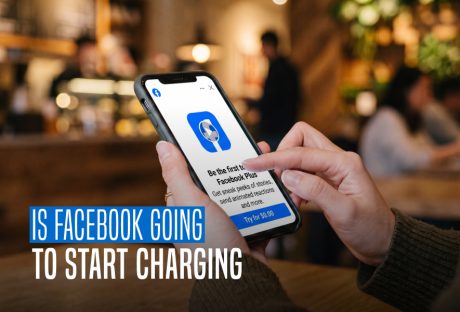
Fee Or Free: The Truth About Facebook And Charging Users
Devices with internet connectivity, including computers, tablets, and smartphones, can access Facebook. Before the development of smartphones, websites were typically only available in desktop versions. However, in order to have a fully functional experience, we can now have access to these websites on our mobile phones. But does that mean Facebook could ask for a fee soon? Is Facebook going to start charging? Here is all that we know so far. Is Facebook Going To Start Charging Regular Users? No. Facebook has not announced a general fee for opening an account, reading posts, joining groups, or using its standard features. Facebook’s official Help Centre still says that it does not charge people to use Facebook. Meta earns much of its money by showing advertisements instead. So, why do some people see payment options on Facebook? The platform now offers several paid extras. Meta Verified, creator subscriptions, Stars, advertisements, and purchases all cost money. However, you do not need any of them to maintain an ordinary Facebook account. Some regions also have a subscription that removes advertisements. People who do not want that subscription can continue using the free, ad-supported version. Therefore, the short answer to “Is Facebook going to start charging?” remains no. Facebook has added more ways to spend money, but it has not placed its main platform behind a universal paywall. Which Facebook Features Cost Money? The word “Facebook fee” can refer to several different payments. The following table separates an access fee from an optional purchase. Facebook featureDoes it cost money?What the payment coversCreating and using a standard accountNoOrdinary access remains free and supported by advertisingMeta VerifiedYes, if selectedA verification badge and additional account featuresSubscription without adsYes, in eligible regionsFacebook and Instagram without advertisementsCreator subscriptionsYes, if selectedExclusive content and benefits from a particular creatorFacebook StarsYes, if purchasedA way to support eligible creatorsBoosted posts and Facebook adsYesPaid promotion for a business, Page, product, or eventMarketplace purchasesSometimesThe item, delivery, tax, or payment-related costsMobile data and internet accessPossiblyCharges from an internet or mobile service provider Most people can continue using Facebook without paying Meta. A charge normally appears only after someone chooses a paid feature, runs an advertisement, or completes a purchase. Why Are Some Facebook Users Offered A No-Ads Subscription? Meta now follows a mixed model in certain countries. A person can use Facebook free with advertisements or pay for an experience without advertisements. Meta introduced this choice in parts of Europe and later announced a similar subscription for Facebook and Instagram users in the UK. The free option did not disappear when the paid plan arrived. The availability and price of a no-ads subscription depend on several details: The user’s country Whether the purchase happens on the web or through a mobile app The number of eligible accounts connected through Accounts Center Facebook explains these differences on its official page about the subscription for using Meta products without ads. A subscription screen can look like evidence that Facebook is becoming a paid service. In practice, it usually presents an optional way to remove ads. Users in eligible regions can still choose the free version. This development suggests that Facebook is moving toward a two-choice system in some markets: free access supported by ads and paid access without ads. It does not indicate a compulsory worldwide membership charge. History And Evolution Of Facebook Charging Facebook's fee structure has changed over time. It started off charging nothing and has since grown to be a sizable source of income for the business. Early Years (2004–2007): Facebook didn't charge for advertising at first because its main goal was to help friends connect. Introduction of Ads (2007): Facebook launched advertisements in 2007, but since the platform was still in its infancy, Facebook advertising costs were comparatively low. Targeted Advertising (2012): Facebook started to improve its advertising system in 2012, enabling companies to target particular demographics while progressively raising the cost of their ads. Facebook Mobile Advertising (2012 to 2015): the significance of mobile ads increased along with the growth of mobile usage. Advertising fees increased because businesses realized the potential of reaching consumers on their phones. Fast Growth (2015–2018): During this time, Facebook's advertising platform grew quickly, which raised competition and raised Facebook's fees. Regulation and Privacy (2018-Present): Facebook's advertising model has recently been impacted by worries about user privacy and governmental regulations. Facebook advertising is still very popular, but companies have to follow new guidelines that affect Facebook ad prices. Charges You May See While Using Facebook Facebook itself may be free, but that does not mean every activity on the platform has no cost. Meta Verified is an optional recurring subscription. It can include a verification badge, account support, and protection against impersonation. Meta describes the current eligibility rules and benefits in its Meta Verified help section. Prices may change by region and purchasing method, so avoid relying on an old price quoted in a social media post. Facebook also allows creators to offer paid monthly subscriptions. These subscriptions may provide exclusive posts, videos, badges, or other benefits. Payment supports the selected creator; it is not a fee for using Facebook itself. The same principle applies to Facebook Stars, which viewers can buy and send to eligible creators. Other possible costs include: Buying or shipping an item found through Marketplace Running an advertisement or boosting a Page post Making an in-app purchase Donating to a fundraiser Paying mobile data or internet charges These payments can occur inside Facebook, but they do not turn a free account into a paid account. Do Not Trust “Facebook Will Start Charging” Chain Messages Claims about an incoming Facebook membership fee have circulated for years. A typical post tells users to copy and share a notice to keep their account free. Another version claims that a payment will become compulsory unless the user acts before a deadline. Copying a status cannot change an account’s payment terms. Facebook would announce a major pricing change through its official Help Center, account notifications, or Meta’s newsroom. It would not rely on an unverified chain message. Treat a message as suspicious when it: Creates an urgent deadline for paying a Facebook fee Promises free access if you copy and repost a statement Requests a password, login code, or card number through a link Sends you to a website that does not use an official Facebook or Meta domain Claims that a friend can “protect” or upgrade your account Do not open unfamiliar payment links. Instead, open Facebook directly and check Accounts Center, payment activity, active subscriptions, and the Support Inbox. Scammers often build a believable story around a real Facebook feature. For example, they may mention Meta Verified and then falsely claim that every user must subscribe. Meta Verified remains optional. What Does Facebook Have To Say? Meta's Facebook has amassed popularity that is hard to rival as well as hard to tap. It goes without saying that it has had one too many of the questions: "is Facebook going start charging"? On their website, they have clearly explained what in-app expenses or any kind of charges mean from their perspective. Here is an excerpt: "No, we don't charge you to use Facebook. Instead, we charge advertisers to show ads on Meta company Products. This helps us make Facebook available to everyone without charging people for access to it. When using Facebook, keep in mind: You need Internet access to use Facebook from your computer, mobile phone or tablet, and your Internet provider may charge you for this access. Learn more about data charges and connecting to Facebook on your mobile phone or tablet. Using some Facebook features, such as text message notifications, may also lead to charges from your mobile provider. If you add your payment information to Facebook, you can do things such as make purchases from businesses, send money to friends, support creators on Facebook, and purchase ads on Facebook. If you purchase something on Facebook, we may earn a commission or transaction fee from that activity. You can also make purchases through Facebook for games, apps, and other items. Note: Facebook doesn't sell your information, and we don't share information that personally identifies you (information such as your name or email address that by itself can be used to contact you or identify who you are) unless you give us permission." What To Do If Facebook Has Charged You Unexpectedly An unfamiliar charge does not always mean Facebook has introduced an access fee. It may come from an advertisement, creator subscription, Meta Verified plan, game purchase, donation, or another transaction linked to the account. Start by checking Facebook’s payment area. Compare the date, amount, and description with your bank or card statement. You should also review subscriptions purchased through Apple’s App Store or Google Play, since mobile subscriptions may appear under the app store’s name. If you cannot identify the payment: Change your Facebook password and log out of devices you do not recognize. Turn on two-factor authentication. Review saved payment methods, advertisements, subscriptions, and purchase history. Report the charge through Facebook’s official Payments Help Center. Contact the bank or card provider if the charge appears unauthorized. Never give a login code to someone who claims they need it to cancel a charge. A genuine support representative should not ask you to send your password or two-factor authentication code through a private message. Changes Facebook Has Introduced Is Facebook going to start charging? Honestly, as we navigate the evolving world of digital advertising, it is critical to comprehend the truth about Facebook charging fees. In actuality, a variety of factors, including audience targeting and ad quality, can affect Facebook ad costs. Facebook is still a powerful platform for advertising, even though the prices might change. This is a dynamic environment where the effects of growing Facebook advertising costs can be lessened through innovation and data-driven decision-making. Businesses can continue to take advantage of the wide reach and growth potential of this platform. They can do so by remaining informed, optimizing campaigns, and fully embracing it.If you have thoughts to share or questions to ask, please leave a comment below. We would love to hear from you! Read More About: Here Is How To Delete A Facebook Page Easily? How To Stop Scammers On Facebook Marketplace? Facebook Settlement: What Went Down And What Was The Final Result?
READ MOREDetails
Unlocking The Facebook Desktop Site On Mobile: The Ultimate 2026 Workaround Guide
In today’s digital landscape, mobile design dominates the web. When you navigate to Facebook on a smartphone or a tablet, Meta automatically forces a lightweight, stripped-down mobile web version (://facebook.com). While this truncated layout saves mobile data and speeds up loading times, it deliberately hides critical administrative settings and power-user privacy configurations. In addition, it hides the advanced Meta Business tools. Fortunately, you are not locked into this restricted interface. You can bypass the standard mobile layout and load the Facebook full site directly through your smartphone’s web browser. By doing so, you get total access to the exact desktop interface used on PCs and laptops. For example, you may need to fix broken notification groups, manage a professional business page, or use messaging tools. That also without installing heavy secondary applications. As a result, the full site offers an instantaneous, zero-install solution. This comprehensive guide will break down the exact technical methods, steps, and universal browser settings. These are requires to display the detailed desktop viewport layout on any iOS or Android device. Direct Methods To Request The Facebook Full Site On Any Mobile Device Loading the desktop interface on a handheld smartphone requires overriding your browser’s default User-Agent profile. This profile will identify your device to Meta’s servers as a smartphone. Consequently, this prompts the server to push a mobile viewport. By forcing a desktop request and editing the layout URL string, you can establish a stable connection to the Facebook full site dashboard. Forcing The Desktop UI Inside Google Chrome (Android & iOS) Google Chrome makes it incredibly simple to discard mobile-optimized designs in favor of full desktop architectures. Specifically, you can use these steps to launch the Facebook full site platform. StepsDescriptionsStep 1Open the Google Chrome Mobile App on your smartphone deviceStep 2Navigate directly to the standard Facebook Home URLStep 3Tap the three-dot menu icon situated in the upper right-hand corner (Android) or lower right-hand corner (iOS) of your browser screenStep 4Scroll down through the drop-down menu and check the box or toggle next to “Desktop site”Step 5: The URL Override StepIf Chrome reloads but the URL bar still displays “://facebook.com,” tap the address bar, clear out the address, and manually type “://facebook.com” or “://facebook.com” to prevent the mobile system redirect. Activating The Full Layout Across Other Modern Browsers Because different internet browsers handle website displays in their own way, forcing the desktop version requires distinct steps depending on your app choice. Furthermore, changes implemented in 2026 have made Facebook's automatic mobile detection highly aggressive, making explicit manual workflows necessary. Apple Safari Implementation For iPhone And iPad If you use an iPhone or iPad, Safari is your default built-in internet browser. Therefore, you must use the native layout engine tools to request the complete computer view. Step 1: Open the Safari app on your phone and head to the standard Facebook sign-in page. Step 2: Look at the address bar at the bottom or top of your screen and tap the “aA” icon on the left side. Step 3: Choose Request Desktop Website from the menu that pops up. Step 4: If the page reloads but still looks like a regular phone view, tap the address bar, clear it out and manually type in “://facebook.com”. Mozilla Firefox Workflow For Android And iOS Users with a preference for running Firefox on their mobile devices, switching to the desktop view will require a simple settings toggle. Step 1: Launch Firefox and type facebook.com into the main web address bar. Step 2: Locate the main menu button, which looks like three vertical dots on the edge of your screen. Step 3: Scroll through the options and turn on the switch next to Desktop site. Step 4: If the page fails to shift to the computer view, tap the address bar and re-type the link as “://facebook.com” to force the layout change. Overriding Persistent Mobile Redirect Loops Even after adjusting your browser settings, modern site filtering systems frequently deploy background detection codes to push mobile users right back to the phone view. However, breaking out of these aggressive server loops requires cutting through saved network data that forces mobile design memory. By executing a clean environment launch or clearing out old site records, you can keep the desktop display locked in place. The Secret Computer Links Facebook frequently attempts to push mobile web users back to the simplified phone view. If your browser keeps flipping back to the mobile layout despite your settings, it means your browser has remembered your old mobile session. To completely break out of this loop, open a brand new Private or Incognito window in your browser and type one of these exact links directly into the top bar: https://www.facebook.com/home.php https://web.facebook.com/ https://www.facebook.com/?theme=desktop How To Reset Your Browser Memory If using the links above still does not work, your browser's saved site memory is overriding your manual desktop requests. Therefore, you must clear out this memory using the following simple path inside your browser settings: Open Settings: Go into your mobile browser's internal settings menu. Find Privacy Options: Locate and tap on the option labeled Clear Browsing Data. Isolate Cookies: Put a checkmark strictly next to Cookies and Site Data. Wipe Memory: Tap the final Clear or Clear Data button at the bottom of the screen. Once this memory is wiped clean, activate your browser's "Desktop site" setting before typing the Facebook web address. This stops the website from labeling your device as a phone on your very first visit. Key Benefits Of Using The Full Desktop Site On Mobile Using the full desktop layout to manage your social profile opens up a wide range of tools that phone screens block. Chat Natively Without The Messenger App The regular mobile website stops you from checking your inbox and forces you to download the separate Messenger app. Alternatively, the full desktop view completely bypasses this rule. As a result, you are allowed to read and send messages directly inside your phone's web browser. That also without downloading heavy extra applications. Deep Privacy And Post Cleanups The full layout opens up your complete Activity Log. This lets you delete old pictures and posts in bulk, view exactly who can see your profile details, and revoke permissions for sketchy third-party apps all from one dashboard. Complete Professional Page Tools Business owners and content creators cannot manage professional pages properly on a phone screen because detailed visitor stats and ad controls are hidden. On the contrary, the full site layout displays your entire business dashboard so you can schedule posts and check ad metrics effortlessly. Advanced Group Administration Similarly, group owners can easily view pending member lists, set up automatic entry rules, hand out badges, and filter out comment spam using moderation panels. Meanwhile, these are entirely missing from mobile apps. Required Browser Versions For Absolute Stability To load and handle a large computer website smoothly, your smartphone app must be reasonably updated. Therefore, check your phone’s app store to ensure your browser meets these baseline versions: Google Chrome Mobile: Version 120 or newer ensures multi-window data routing and stops the website from automatically logging you out. Apple Safari iOS: Version 17.2 or newer supports advanced hardware viewport scaling and prevents the page layout from breaking. Mozilla Firefox Mobile: Version 122 or newer successfully hides your phone identity so the site thinks you are a PC. Samsung Internet: Version 23.0 or newer allows heavy, data-dense layout elements to load up without crashing. Navigating A Desktop Layout On A Smartphone Touchscreen Operating a massive website layout designed for a physical mouse and keyboard on a small touchscreen can be tricky. However, you can make it much easier with two quick adjustments. Tweak Your Internal Text Scaling Instead of constantly pinching and zooming to read small text, use your browser's internal text tool. Specifically, in Google Chrome, go to Settings, select Accessibility, and drag the text size slider. Do this until the print is perfectly legible without breaking the website columns. Force Widescreen Horizontal View Simultaneously, turn your smartphone sideways into landscape mode. Consequently, this gives the website more horizontal room, tricking its layout into spreading out naturally across your screen. Moreover, this instantly stops text from overlapping and makes tiny links far easier to press. Quick Fixes For Common Desktop View Problems When forcing the computer view, you might run into minor layout bugs. Use this quick troubleshooting guide to fix them instantly. Stuck On Mobile View: Your browser has saved the mobile view in its temporary memory. Fix this by clearing your browser cookies and using an Incognito tab to load the site. Broken or Scrambled Layout: Your phone screen is physically too narrow to fit the text boxes side by side. Fix this by turning your phone horizontally into landscape mode to widen the screen view. Links Opening the Installed App: Your phone's internal settings are forced to open all Facebook links inside your downloaded app. Fix this by holding your finger down on the web link for two seconds and selecting Open in New Tab. Data Consumption And Battery Safety Warnings Running a full computer webpage on a small smartphone uses up a massive amount of phone resources. Since computer layouts do not compress images or pause background tasks like mobile pages do, they consume roughly five times more internet data. Additionally, they draw heavily on your phone battery. Because of this high resource drain, it is always best to use this workaround while connected to an unmetered Wi-Fi network. If you absolutely must use your mobile data plan, close the browser tab the moment you are done to stop background activity from eating up your monthly data allotment. Browser Updates And Website Layout Disclaimer Web layouts, structural layers, and browser setups are updated constantly by their respective companies. Therefore, the step-by-step instructions detailed throughout this guide are based on how mobile browsers and Facebook interact at this given time. Since Meta regularly shifts its background layouts and tracking systems to keep mobile users on mobile screens, specific menu names, buttons, or links may move in future updates. If a saved link format suddenly stops working for you, check your app store to ensure your browser app is updated to its newest possible version. Additional Reading: How To Remove Pname Com Facebook Orca? Facebook Blueprint: Building A Strong Foundation For Social Media Advertising How To Fix “Facebook Message Sent But Not Delivered” Error?: A Complete Guide
READ MOREDetails
Beyond Passwords: The Future Of Security With Facebook Authentication
A strong password is useful, but it cannot protect a Facebook account on its own. A criminal may steal it through a fake login page, malware, a data leak, or a password used on another website. The risk can extend beyond your personal profile. One Facebook account may manage business Pages, advertising accounts, customer messages, and other Meta services. Losing that account could therefore affect much more than your posts and photographs. Facebook authentication adds another check to the login process. Even if someone obtains your password, they must pass a second security step. You might approve the login with a code, a physical security key, or a trusted device. This guide explains how to set up a Facebook authentication app in 2026. It also covers passkeys, recovery codes, login alerts, linked Meta accounts, and the security measures that business users should consider. What Is A Facebook Authentication App? The phrase “Facebook authentication app” can be confusing. Facebook does not require one specific app with that name. Instead, it can connect to a third-party authenticator such as Google Authenticator, Microsoft Authenticator, or Duo Mobile. The authenticator creates a temporary six-digit code. This code changes after a short period. When Facebook detects a login from an unfamiliar browser or device, it may ask for the current code. The code comes from the authenticator app rather than through a text message. It can usually work without mobile data or a phone signal. This feature forms part of two-factor authentication, commonly called 2FA. Two-factor authentication asks for two different forms of proof: Something you know, such as your password. Something you have, such as your phone or security key. Someone who knows only your password should not be able to complete the login. How Facebook Two-Factor Authentication Works When you turn on 2FA, Facebook asks you to choose a security method. Meta currently supports authentication apps, SMS codes, and physical security keys. The options shown may depend on your account, device, and location. You will not need to enter a code every time you open Facebook. The platform can remember a trusted device. However, it may request another check when it notices a new browser, cleared cookies, private browsing, or a different location. Two-factor authentication reduces the value of a stolen password. It does not make an account impossible to hack. A convincing phishing page may try to steal both your password and the temporary code. Good login habits must therefore support the technology. Meta explains the available methods in its guide to how two-factor authentication works on Facebook. Which Facebook Authentication Method Should You Choose? Facebook offers several ways to secure a login. They do not provide the same balance of safety and convenience. Security methodHow it worksSuitable forAuthenticator appCreates changing codes on your deviceMost personal and business usersSecurity keyUses a physical USB, NFC, or Bluetooth deviceAdministrators and accounts at high riskSMSSends a code to your mobile numberA fallback when stronger methods are unavailablePasskeyUses your device PIN, fingerprint, or face scanSimple and phishing-resistant sign-in on supported devices A Facebook authentication app is a practical choice for most users. It does not depend on the mobile network. This helps when you travel or when text messages arrive late. SMS is easy to use, but it depends on your phone number. A criminal may try to take over that number through a SIM-swap attack. SMS is still better than using only a password, but it should not be your only recovery method. Security keys and passkeys provide stronger protection against fake login websites. CISA calls phishing-resistant multi-factor authentication the strongest form of MFA. Its MFA guidance explains why cryptographic login methods can resist several attacks that affect texted or typed codes. How To Set Up A Facebook Authentication App On Mobile Facebook now places its main login controls inside Accounts Center. Follow these steps on an Android phone or iPhone: Open the Facebook app. Tap Menu or your profile picture. Select Settings & privacy. Tap Settings. Open Accounts Center. Select Password and security. Tap Two-factor authentication. Choose the Facebook account you want to protect. Select Authentication app. Follow the instructions shown on the screen. Facebook may show a QR code or a setup key. If the authenticator is on the same phone, Facebook may offer to open it directly. Otherwise, scan the QR code from another device or enter the setup key manually. The authenticator will produce a six-digit code. Enter that code in Facebook to confirm that the connection works. Do not save a screenshot of the QR code. Anyone who obtains that setup information may be able to create valid codes. Treat it with the same care as a password. The menu used for 2FA is separate from Facebook Messenger. Opening Messenger settings will not take you to the account’s main authentication controls. How To Set Up Facebook Authentication On A Computer You can complete the same process through a web browser: Sign in to Facebook. Click your profile picture. Select Settings & privacy, followed by Settings. Open Accounts Center. Choose Password and security. Click Two-factor authentication. Select the Facebook account. Choose Authentication app, Security key, or Text message. Complete the verification steps. If you choose an authentication app, Facebook will display a QR code. Open the authenticator on your phone and scan it. Enter the code created by the app to finish the setup. Meta occasionally changes the location or wording of settings. However, Accounts Center > Password and security > Two-factor authentication remains the main route in the current interface. Meta provides updated instructions for securing an account with two-factor authentication. Passkeys: The Step Beyond Passwords Passkeys change how login works. Instead of typing a password, you approve the request with a device you already trust. Your phone or computer may use a fingerprint, face scan, screen lock, or PIN. A passkey contains a private cryptographic key that remains protected on your device. The genuine service holds the matching public information. A fake Facebook page cannot collect and reuse the passkey like a normal password. To check whether Facebook offers passkeys on your account: Open Settings. Go to Accounts Center. Select Password and security. Look for Passkey or Passkeys. Follow the instructions to create one. Availability can depend on the account and device. A passkey also needs a recovery plan. If you lose the device, you may need another approved login method. Meta’s Facebook passkey guide explains how supported accounts can create and use one. Save Recovery Codes Before You Need Them Two-factor authentication can create a problem if you lose your phone. Facebook provides recovery codes for this situation. After enabling 2FA: Return to Accounts Center. Open Password and security. Choose Two-factor authentication. Select your Facebook account. Open Additional methods or Recovery codes. Generate the available codes. Meta provides 10 one-time recovery codes. Each code stops working after you use it. Store them in a reputable password manager or write them down and keep them in a secure place. Do not keep the only copy on the same phone as your Facebook authentication app. If the phone is lost, both forms of access will disappear together. Avoid saving the codes in an unprotected screenshot, shared document, email draft, or group chat. You can generate a new set if you believe someone has seen the old codes. Meta’s recovery-code instructions provide the current details. Protect Connected Instagram And Threads Accounts Accounts Center can connect Facebook, Instagram, and other Meta profiles. This makes sign-in and cross-platform features easier to manage. It can also cause confusion about which account has 2FA enabled. Turning on Facebook 2FA does not mean that every connected account has the same protection. Open the two-factor authentication menu and review each listed profile separately. Check the following details: The email address and phone number connected to each account. The two-factor authentication method used by each profile. Devices that remain signed in. Connected apps and websites. Accounts you no longer recognize or use. Remove old scheduling tools, contest apps, and analytics services that no longer need access. If an employee or agency once managed a business profile, check whether that access still exists. A connected account should make your work easier. It should not become an unnoticed route into several Meta services. How Criminals Try To Bypass Facebook Authentication Two-factor authentication blocks many password attacks, so criminals often target the person instead. A message may claim that your Page has broken a rule. It might warn that Facebook will delete the Page unless you appeal within a few hours. The link leads to a fake login screen that collects your password and temporary code. Another attack sends repeated login requests. The criminal hopes that you will approve one by mistake or simply to stop the alerts. A third method targets the phone number used for SMS. Through fraud or social engineering, the attacker may convince a mobile provider to transfer the number to another SIM. Follow a few simple rules: Start Facebook logins from the official app or by typing the address yourself. Do not enter a code after opening a link from an unexpected message. Never send a login or recovery code to another person. Reject login requests you did not start. Check the Facebook Support Inbox before trusting an account warning. A genuine support worker does not need your password or one-time code. If someone asks for either, stop the conversation. Facebook Authentication For Business Pages A personal Facebook profile may control valuable business assets. These can include Pages, customer messages, advertising accounts, payment methods, and Business Portfolios. If a criminal takes over that personal profile, the damage may reach the wider business. Every person with high-level access should therefore use strong authentication. Avoid sharing one personal login among several employees. Facebook provides Page and business permissions so that people can use their own accounts. Individual access also makes it easier to remove a former employee without changing a shared password. Review these areas regularly: People with full or partial Page access. Business Portfolio permissions. Advertising accounts and payment details. Connected Instagram accounts. Active agencies and outside tools. Devices and locations with current sessions. Keep more than one trusted person with suitable control when possible. If one administrator loses access, another can still protect the business assets. Businesses should also have a response plan. Decide who will pause advertisements, remove an unknown user, contact Meta, and inform customers after a security incident. What To Do If The Authentication Code Does Not Work Authenticator codes depend on accurate time. If Facebook rejects a code, confirm that your phone sets its date and time automatically. Then wait for the app to create a fresh code and try again. Make sure you selected the correct Facebook entry inside the authenticator. People with several accounts may accidentally use the code for another profile. If the code still fails: Try a saved recovery code. Use another 2FA method already connected to the account. Check whether Facebook remains open on a trusted device. Review Meta’s 2FA troubleshooting process. Avoid making many rushed attempts. If you lose your phone, contact the mobile provider and protect your number. Use a trusted device to change your Facebook password and sign out of the missing phone. If someone changed your password or security settings, use Facebook’s official recovery page at facebook.com/hacked. Do not pay a stranger who promises to recover the account through WhatsApp, Telegram, or Messenger. Complete A Regular Facebook Security Checkup Authentication works best when you support it with a few other settings. Open Accounts Center > Password and security and review: Where you’re logged in: Sign out of devices and locations you do not recognize. Login alerts: Turn on warnings for unfamiliar devices or browsers. Saved login information: Remove phones and computers you no longer own. Password: Use a unique password that does not appear on another site. Recovery codes: Replace them after use or possible exposure. Passkeys: Add one on a trusted device if Facebook offers the option. Security Checkup: Complete the recommended account review. Do this after changing phones, travelling, hiring an agency, or removing a business administrator. You should also review the settings after receiving an unexpected login alert. Facebook’s Security Checkup brings several of these controls into one guided process. Frequently Asked Questions Can I use Facebook without an authenticator app? Yes. Facebook may let you use SMS or a physical security key instead. A passkey may also be available for supported accounts and devices. Is A Facebook Authentication App Free? Many popular authenticator apps are free. Check the developer and permissions before installing one. Download it from the official Apple App Store or Google Play Store. Will Facebook ask for a code every time? Usually, no. Facebook can recognize a trusted device. It may request a new check after you change browsers, clear cookies, use private browsing, or sign in from an unfamiliar location. Can Someone Steal An Authenticator Code? A criminal may capture a code if you type it into a fake website or send it through a message. Authenticator codes expire quickly, but an attacker may try to use one immediately. Always check the website or app before entering it. Does Facebook 2FA Protect Instagram Automatically? Not necessarily. Accounts Center lets you choose the account you want to protect. Review Facebook and Instagram separately and confirm that each has an active security method. Wrapping Up A Facebook authentication app adds an important barrier between your account and someone who has obtained your password. It works without depending on a text message and suits most personal users. For stronger protection, consider a passkey or physical security key. Keep recovery codes somewhere safe and separate from your main device. Review connected Meta accounts, active sessions, business permissions, and login alerts as well. No single setting can stop every attack. Strong Facebook security comes from several small controls working together: a unique password, a second factor, safe recovery options, careful access management, and the habit of questioning unexpected login links. Set them up before something goes wrong. Account security is far easier to manage while you still have full access. Additional Reading: How to Get Help Through Facebook Chat Support? What Is Facebook Touch? Everything You Need To Know About It Facebook Settlement: What Went Down And What Was The Final Result?
READ MOREDetails
How to Get Help Through Facebook Chat Support?
Did you know that there are 2.93 billion monthly active users on Facebook? That is a sizable number of possible friends, acquaintances, and clients. If something goes wrong, you may want to contact Facebook. Facebook Support Chat helps you do exactly that. However, it is intimidating and depressing for a Facebook user to consider competing with billions of users for social media support. Reaching out to any support team, particularly Facebook's, for assistance with removing offensive content, recovering a hacked account, or simply asking a question, can be a very confusing and time-consuming process. How Facebook Support Works In 2026 Facebook does not offer one universal customer-service chat for every user. The support option you see depends on your issue, account type, country, advertising activity, and eligibility for products such as Meta Verified. Use the route that matches your problem: ProblemBest first optionWhat to expectYou need help using a featureFacebook Help Center or Meta’s support assistantGuided answers and account-specific helpA button or feature is brokenReport a problemA technical report sent to FacebookYour account or Page has a restrictionAccount Status and Support InboxNotices, decisions, and appeal optionsAn ad, payment, or business asset has an issueMeta Business Help CenterSupport options may appear for eligible businessesYour account may be hackedFacebook’s hacked-account recovery flowSecurity checks and account recovery stepsYou received a platform warningSupport InboxA place to verify whether the notice is genuine The phrase “Facebook support chat” usually refers to one of these support routes. A live conversation with a human agent is not guaranteed for ordinary personal accounts. Meta’s official Points of support and contact page directs users to the Help Center, reporting tools, and account-specific support. Is Facebook Live Chat Available To Everyone? No. Facebook live chat is normally limited to selected business, advertising, or verified accounts. Even businesses that use Meta products may not see a Chat button every time they open the support area. To check: Open the Meta Business Help Center. Sign in to the business account connected to your Page or ad account. Choose the product or asset affected. Select Get support or a similar contact option. If your account qualifies, Facebook may show chat, email, or another contact method. Meta Verified for businesses can also provide access to personalised support, subject to eligibility and the plan available in your country. Check Meta’s current Meta Verified for Businesses information before paying for any subscription. Do not assume that a live chat option must appear. Its absence does not mean that your account is permanently blocked or that Facebook has ignored your problem. It often means that the available support route is limited to self-service articles, a report form, or the Support Inbox. Types Of Facebook Support Facebook provides a range of support options to assist users in resolving their problems. Here are a few methods to get in touch with Facebook Support if you're unsure how to do so: For users trying to solve common problems, the Facebook Help Center is a great resource. Clicking the "Help Center" option from the Facebook drop-down menu will take you to the Help Center. Answers to frequently asked questions and articles about Facebook usage can be found here. By choosing "Report a problem" from the drop-down menu under "Help," you can also report a problem you're having directly to Facebook. What Is Facebook Community? Users can find resources about creating a community on Facebook in the Facebook Community. For those seeking assistance with Facebook Groups, online events, community chats, and other topics, this forum is excellent. Other Ways To Seek Facebook Support Facebook, Meta for Business, Meta for Media, Facebook and Privacy, Developer Community Forum, Engineering at Meta, and Design at Meta are among the subjects covered by the official Facebook websites. You can find articles, tutorials, and other useful resources on these pages to assist you in troubleshooting platform issues. Additionally, you can email Facebook Support. You can send an email to the appropriate addresses, but most users lament how infrequently they receive a response. Use support@fb.com for general support inquiries. Please send any questions you may have to press@fb.com. For issues relating to law enforcement, use records@fb.com. Appeal content that has been blocked by using appeals@fb.com. Use abuse@fb.com to report content that goes against Facebook's policies. Send an email to datarequests@fb.com to find out what information Facebook has about you. To address questions about intellectual property, use ip@fb.com. Use phish@fb.com to report phishing content. How To Contact Facebook Support Through Official Channels Start from Facebook itself rather than searching for a phone number or clicking a support link sent by another person. Use The Help Center Sign in to Facebook. Click or tap your profile picture. Open Help & support. Select Help Center. Search for the exact problem, such as “account disabled,” “Page access,” “ad payment,” or “hacked account.” Facebook may also offer an automated support assistant in the Help & support area. Its availability and functions can vary by account. Report A Technical Problem If a feature is not working: Open Help & support. Select Report a problem. Choose the area affected. Describe what happened. Add a screenshot that does not reveal passwords, payment details, or security codes. Send the report. Meta explains that reports help its teams investigate broken features, although a personal reply is not guaranteed. You can review the latest instructions in its report-a-problem guidance. What To Write In A Facebook Support Request A clear report gives Facebook enough information to understand the problem without several rounds of questions. Keep the message factual and easy to scan. Include: the Page, profile, ad account, or business asset affected; the date and approximate time the problem began; the exact error message or warning; the device, browser, or app version you used; the steps that caused the problem; screenshots or a short screen recording, with private information hidden; any case number from an earlier report. Explain what you expected to happen and what happened instead. For example: “I have full control of the Page, but the Access and control menu does not show the deletion option.” Never include your Facebook password, one-time login code, full payment-card number, or recovery code in a support message. Facebook support does not need those details to investigate a normal technical issue. Where To Find Facebook Support Replies Facebook sends many account notices and report updates to the Support Inbox. It is the first place to check after submitting a problem. On the Facebook app: Tap Menu or your profile picture. Select Help & support. Tap Support Inbox. On desktop, open your profile menu, choose Help & support, and select Support Inbox. The inbox may contain account alerts, reports about content, Page decisions, and replies connected to previous requests. Meta’s Support Inbox instructions confirm that it is used for alerts and messages from Facebook. If you cannot find a reply, check that you are signed in to the same personal profile that submitted the report. A Page manager may need to switch into the relevant Page or business account before related notices appear. Avoid Fake Facebook Support Numbers And Messages Facebook does not provide a universal customer-support phone line for ordinary account problems. Numbers published on blogs, forums, or social-media posts may be outdated, automated, or unrelated to Meta. Be cautious if someone claiming to be Facebook support: sends you a private message asking for your password; asks for a login code or recovery code; requests payment to restore a profile; sends a shortened link to “verify” your Page; promises an immediate appeal through WhatsApp, Telegram, or another chat app. Do not give the person access to your account. Open Facebook directly and check your Support Inbox instead. Meta also advises users to take action if they believe they have been phished on Facebook. A genuine support request should begin inside Facebook, the Meta Business Help Center, or another official Meta website. If you received a warning by email or message, compare it with the notice shown in your Support Inbox before taking action. Support Chat Is More Accessible Now! Although we sincerely hope you never need to contact Facebook support, you might occasionally require assistance on the social media network. We've listed the standard methods for getting in touch with Facebook support when you're having problems. Facebook support chat is available to assist with any problems as well as provide guidance on new features and strategies for expanding your company's presence on the network. Additional Reading: Here Is How To Delete A Facebook Page Easily? How To Stop Scammers On Facebook Marketplace? Facebook Settlement: What Went Down And What Was The Final Result?
READ MOREDetailsPopular

Technologies For Creating A Startup Idea
20 Feb 2023

How to Download Facebook Videos on Android?
07 Feb 2019

7 Rules of Effective Ecommerce Web Design
28 Jan 2021

Why Are Online Transactions Convenient?
07 Dec 2023
Recent